ViralSpin Academy
Related Reading
Approve the story arc before you fuss over individual pictures. Once the chapters are right, ViralSpin sorts every photo into the chapter it belongs to, and you only fix the handful it got wrong instead of placing all 250 by hand.
Make a photo album video
with AI, step by step
 AITechDad
•
Updated November 2026
You have a year of photos. They're on your iPhone, in Google Photos, and in a shared album someone else made.
The slideshow apps want you to drag them in one at a time, and they still crop off the heads.
This is how we made "Kira's First Year": 261 photos, clips and Live Photos, turned into a 3-minute story video.
Every step, with the real screens.
The problem with making a photo album video
Every parent, every wedding guest, every team that ran an event ends up in the same place: hundreds of good photos and a handful of short clips, and an occasion coming up. A first birthday. A retirement party. A memorial. You want a video that tells the story, two or three minutes long, with music, something you can play on the TV or post.
The photos are never in one place. Most of ours were on an iPhone. A few hundred more were in Google Photos, backed up from a second phone. Grandparents had sent some over a messaging app. Some were Live Photos, some were 4-second clips, a few were screenshots of a video call with family overseas. Before you can make anything, you have to collect them, and that alone takes an evening.
Then the slideshow tools ask you to make all the decisions yourself, one picture at a time:
- Which ones? Out of 900, you want maybe 250. Picking them in a grid, scrolling back and forth to compare near-duplicates, is the slowest part of the whole job.
- In what order? Date order is a start, but a story isn't a timeline. The family photos belong together near the end. The "firsts" (first smile, first steps, first food) belong in their own chapter even though they happened across months.
- How do they fit the frame? A phone video is vertical (9:16). Most photos are not. Fit them whole and you get black bars and tiny faces. Fill the frame and the tool crops through the middle, which with a photo of two grandparents standing either side of a baby means two people lose half their heads.
- What about the clips? Most slideshow apps either ignore video or speed it up to fit a fixed slot, so your baby's first laugh plays at double speed with the sound cut.
- What about the music? The track you love starts with eight seconds of near-silence, and the tool has no way to start it later.
And when you finally export, it's a 40-minute wait on a laptop fan, after which you notice the one photo you meant to cut, and start again.
We built the photo album feature in ViralSpin to take those decisions off your hands, or at least most of them, while leaving you every control to overrule it. This tutorial walks through it end to end using a real project: "Kira's First Year", a 3-minute album of 261 pictures and clips (153 photos, 100+ clips and a set of Live Photos) made for a first birthday.
What ViralSpin does for you (and what you still decide)
Before the steps, here's the division of labour, because it shapes how you should work.
ViralSpin does:
- Gathers your media in one library. Photos and clips you pick from Google Photos, upload, or send from the ViralSpin iPhone app all land in one Media library, kept for you, so the next album starts with them already there.
- Writes a story arc. You describe the video ("Kira's first year, for her first birthday, about three minutes") and the assistant proposes the chapters with their timing: The arrival, Home at last, Growing fast, Firsts, The family, One year old, Thank you.
- Sorts every picture into a chapter. It reads the dates and what is in each picture and places it in the chapter where it belongs.
- Frames every picture around the faces. Faces and focal points are found in each photo, so the vertical frame never cuts through a head. Two people far apart in a wide photo get a pan from one to the other, with a pause on each.
- Lays out the video. A look (we use "Scrapbook + Wall" in this tutorial) turns the chapters into shots: a wall of every picture in the chapter with the camera gliding from one to the next, taped prints on paper, full-screen moments.
- Plays clips the way you filmed them. At normal speed, the part you chose, with their own sound under the music. When a chapter has more clips than room, two or three play side by side.
- Mixes the music. The track is trimmed to the part you chose, looped to the length of the video, faded out at the end.
- Renders it, either free on your own PC with the ViralSpin connector, or in the cloud for a few credits.
You decide:
- Which pictures are in and which are out (you can remove, reorder and add at any point).
- The chapters: their names, their order and their timing.
- How any single picture is framed, if you don't like the automatic choice.
- The music, and where in the track it starts.
- Where it renders.
The rest of this guide goes through each of these in the order you'll meet them.
Step 1: Start a photo album in the studio
Open the studio at app.viralspin.ai and sign in with Google. The studio is a chat on one side and your work on the other; you can type what you want in plain words, or use the buttons.
Start a new conversation and say what you're making. Ours was:
The assistant asks where the pictures are, then opens the picker. You don't need a perfect selection at this point. Bring in more than you'll use; you'll trim it later, and the extra pictures stay in your Media library for next time.
Step 2: Bring in the photos from everywhere
This is the step that used to take an evening. There are three ways in, and you can mix them.
From Google Photos
Choose Google Photos and the Google picker opens in a new tab. Select as many as you like (we picked several hundred in one go) and press Done. ViralSpin saves a copy of each picked photo and clip to your library, so they keep working even after Google's temporary picker links expire. The save runs in the background; a counter shows how many are done and roughly how long is left.
From your iPhone
The ViralSpin iPhone app reads your camera roll directly, including Live Photos with their moving clip. Anything you add there is in the same Media library on the web. If you'd rather not install it, you can upload photos and clips straight from your computer.
From your Media library
Everything you've brought in before lives in the Media library pill of the album editor (ours had 691 items by the end). Pictures in it are already described: ViralSpin looks at each one once and notes who and what is in it and when it was taken, which is what lets it sort them into chapters later.
Finding the right ones
You don't have to scroll 900 thumbnails. Ask in the chat ("the photos from her first birthday party", "anything at the park in July", "clips where she's laughing") and the assistant searches your library by what is in the pictures, not just by filename. Results come back as cards you can add with one click.
Step 3: Approve the story arc
Once the pictures are in, the assistant proposes a story arc: the chapters of the video, what each one is about, and where each one starts. Ours, at three minutes:
| Chapter | Starts at | What goes in it |
|---|---|---|
| The arrival | 0:00 | Birth and first hours, first cuddles |
| Home at last | 0:24 | Coming home, the first quiet weeks |
| Growing fast | 0:50 | Months passing, bath time, tummy time |
| Firsts | 1:19 | First smiles, laughs, milestones, the walker clips |
| The family | 1:50 | Parents, grandparents, together moments |
| One year old | 2:19 | The birthday and the biggest smiles |
| Thank you | 2:43 | A warm closing shot, a slow final moment |
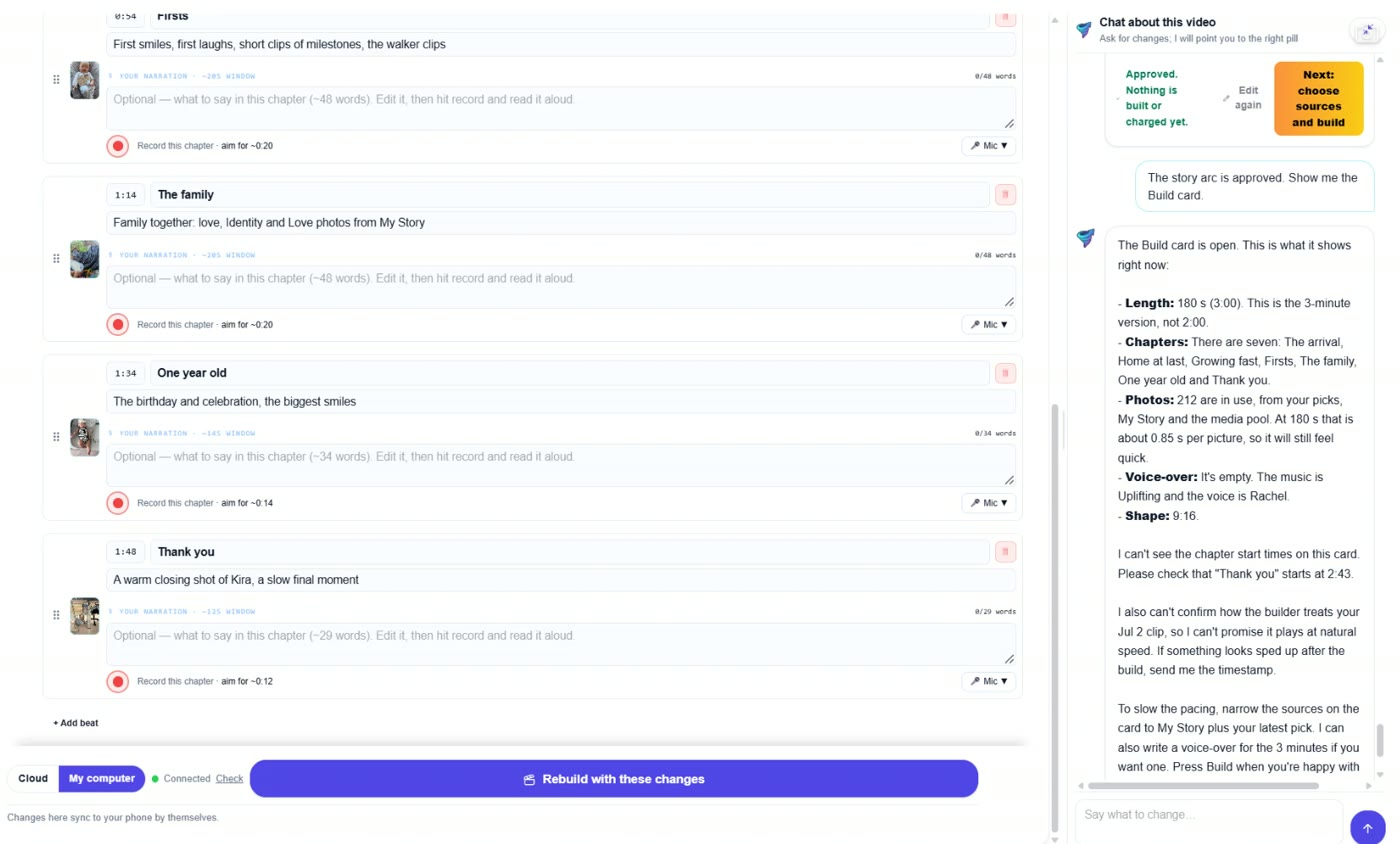
Everything here is editable:
- Rename a chapter by typing over its name.
- Retime it by changing the start time. The chapters after it shift so the whole thing still fits the length.
- Reorder chapters by dragging the handle on the left.
- Add a chapter with + Add beat, or delete one with the bin icon.
- Change the length. Ask the chat ("make it 3 minutes") and it rewrites the arc with new start times. Approve it, and the editor picks up the new timing everywhere.
When it reads right, press Approve this arc. Nothing is built or charged at this point. Approving just tells ViralSpin how to sort the pictures.
Narration (optional)
Each chapter has a box for narration. Leave them empty and the video is music and pictures, with the chapter names as on-screen titles. Type a few lines per chapter and they become captions; press the red record button and read them aloud, and your own voice becomes the soundtrack, with the music lowered under it. For a first birthday we kept it to music and a 58-word script shown as captions.
Step 4: Watch ViralSpin sort the album into chapters
With the arc approved, ViralSpin sorts every picture into its chapter. This is where the hours of drag-and-drop go away.
It uses three things for each picture:
- When it was taken. The capture date from the photo or clip, so the arrival photos land in The arrival.
- What is in it. Who is in the picture, how many people, what is happening: a cake and candles goes to One year old; grandparents go to The family.
- Your chapter descriptions. The words you wrote in Step 3.
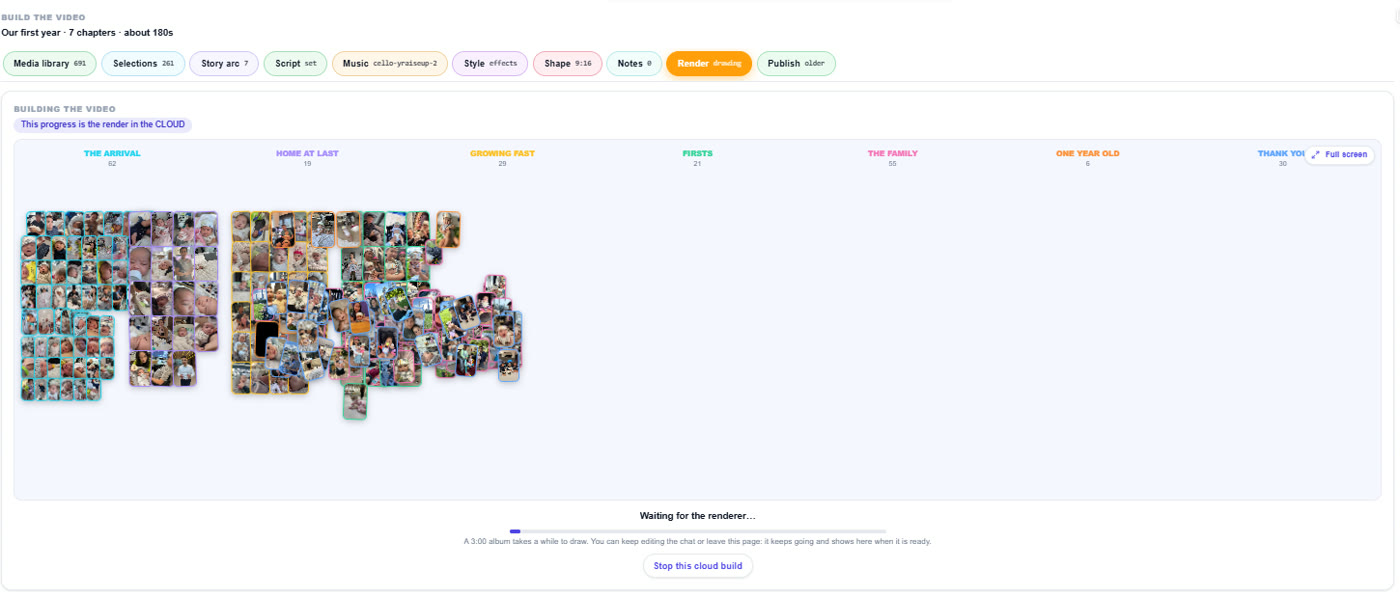
The result shows up on the Selections board, one row per chapter, colour-coded the same way as the build animation, with a count per chapter. For Kira's album it came out at 62 in The arrival, 15 in Home at last, 26 in Growing fast, 31 in Firsts, 48 in The family, 6 in One year old and 31 in Thank you.
Step 5: Fix what the AI got wrong (remove, reorder, add)
No sorter is perfect, and this is your album. The Selections board is where you overrule it, and every change saves itself.
Remove a picture
Hover a card and press the ×. It leaves the video but stays in your Media library, so you can bring it back later.
Reorder
Drag a card to where you want it, inside a chapter or into another chapter. The order on the board is the order in the video: each chapter opens on the first picture on its board and closes on the last. If you want the video to end on one particular photo (we ended on a family photo, card #35 in Thank you), put it last in the last chapter.
Add
Use Add photos at the end of a chapter, or right-click a picture in the Media library and choose which chapter it goes in. The panel even suggests the chapter whose dates fit the picture best.
Turn or trim
Each card has a rotate button for sideways phone photos. Right-click a clip and choose Trim this clip to set the exact part that plays, and how loud its own sound is.
Saves itself, everywhere
Every change is saved to your draft within a second. The line under the Build button says when ("✓ Saved 2 min ago (4:05 PM)"), and if a save ever fails it says so in red with a Try again button. The draft is the same on your phone, your other computer and the web, so you can sort on the laptop and check it on the phone.
Step 6: Make sure every face is in the frame
This is the part slideshow tools get wrong most often, and the part we put the most work into.
A phone video is tall and narrow. Most photos are wide. Fill the frame with a wide photo and something has to be cut. The question is what. ViralSpin answers it per picture:
- Faces and focal points first. Each picture is checked for faces (and, where faces are hard to detect, as with many baby photos, for the main subjects). The frame is placed so they are inside it, and kept clear of the band at the bottom where captions go.
- Small subjects are brought closer. A baby in the corner of a big room is gently enlarged so she isn't a speck, but never blown up so far that she goes soft.
- When the frame can't hold everyone, nobody is cut. If the people in a photo are too far apart for a vertical frame, the picture is shown whole instead of cropped through someone's head.
Pan between two people
Some photos have two subjects at opposite ends: a father at his desk on the right and the baby in her bouncer on the left, or grandparents standing either side. The vertical frame can only hold one of them. So instead of cropping one out, ViralSpin shows one, glides to the other, and pauses on each.
It does this by itself when it finds two faces too far apart for one frame. You can also ask for it on any picture:
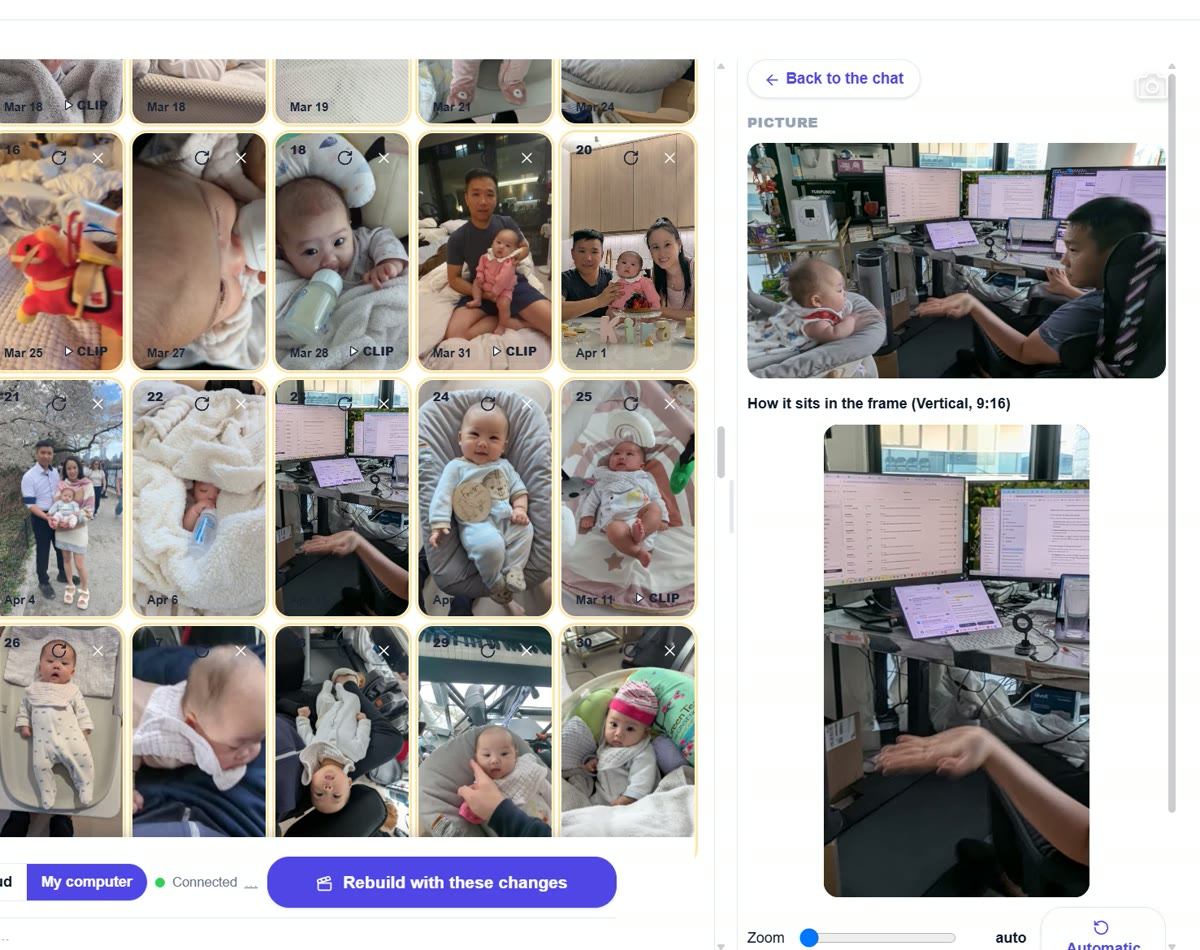
- Click the picture on the Selections board. The panel on the right shows it, and below it How it sits in the frame, a preview of the exact vertical crop.
- Under Motion, choose Pan between the people. The pan holds on the first person, glides, and holds on the second.
- Or choose Pan: start → end to set it yourself: press Start, drag the picture to where the shot should begin; press End, drag it to where it should finish. Preview the pan plays the glide in the panel.
- Choose Still to hold the picture without moving.
Set the framing yourself
For any picture, drag it inside the frame preview to move it, and use the Zoom slider to go in closer. The preview is exactly what the video draws. Automatic puts it back to ViralSpin's choice.
Step 7: Clips and Live Photos, at real speed
A first birthday album is half video: the first laugh, the first steps holding a walker, cake on the face. Clips are where most slideshow tools let you down, by speeding them up to fit a fixed slot.
ViralSpin doesn't speed clips up. Each clip plays at the speed you filmed it:
- Trim it to the part you want (right-click ▸ Trim this clip). You can take several parts of one long clip.
- Its own sound plays under the music at the level you choose: the laugh, the room, a "happy birthday". There's a level per clip and one for the whole album.
- When a part is longer than its spot, it is cut short at the end of the spot rather than sped up.
- When a chapter has more clip time than its length, two or three clips play side by side, each in its own framed window, each at full length. Only one window's sound is heard at a time, so they never talk over each other.
Live Photos (the iPhone's 3-second moving photos, badged LIVE on the board) move in the video: when the camera lands on one, its clip plays instead of the still.
Step 8: Choose and trim the music
Open the Music pill. Pick a track from the list and press Listen.
Most tracks have an intro you don't want under a baby's first photo: eight seconds of near-silence, or a build-up that only makes sense in the full song. Under the track, ViralSpin draws its waveform:
- Drag the green handle to where the music should start. The waveform makes the first note obvious.
- Zoom in (up to 16×) to place it on the beat. Zoom to the start jumps straight to the start handle.
- Drag the red handle to where it should end, or leave it at the end of the track.
- Click anywhere to move the playhead, and press Play from the start to hear exactly what the video will use.
The video uses that part of the track, loops it if the video is longer, and fades it out over the last few seconds. Below it, The clips' own sound sets how loud the clips are under the music.
Step 9: Pick a look and a shape
Style sets how the album moves. We used Scrapbook + Wall:
- The Wall: every picture in the chapter on a tilted wall of framed prints, the camera gliding from one to the next, the picture it lands on lifted forward with the chapter's name on a paper tag.
- Scrapbook: one big print taped to warm paper, a slow push in, a slight turn.
- Full-screen moments: a picture zooms to fill the screen, holds, and returns to the wall.
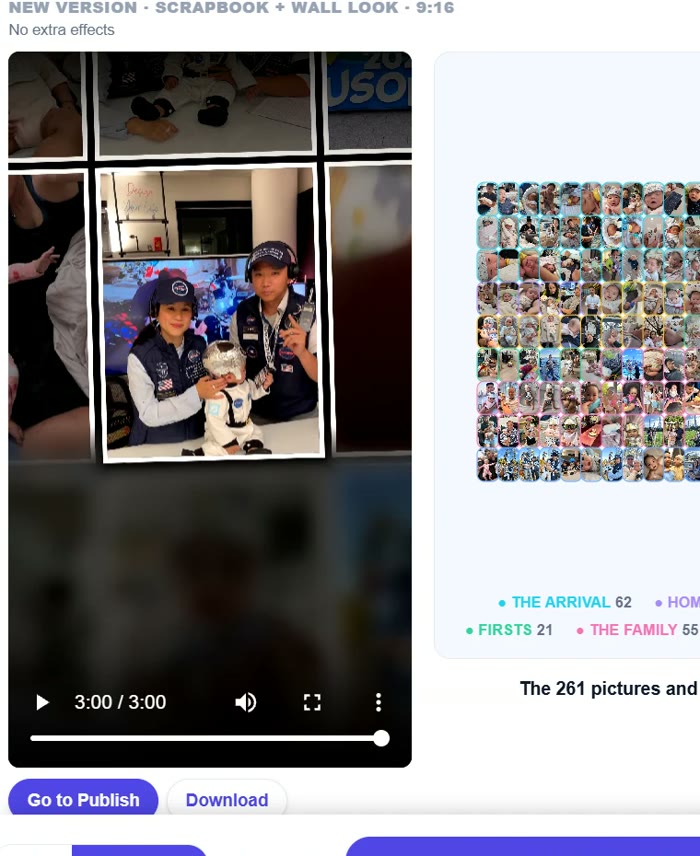
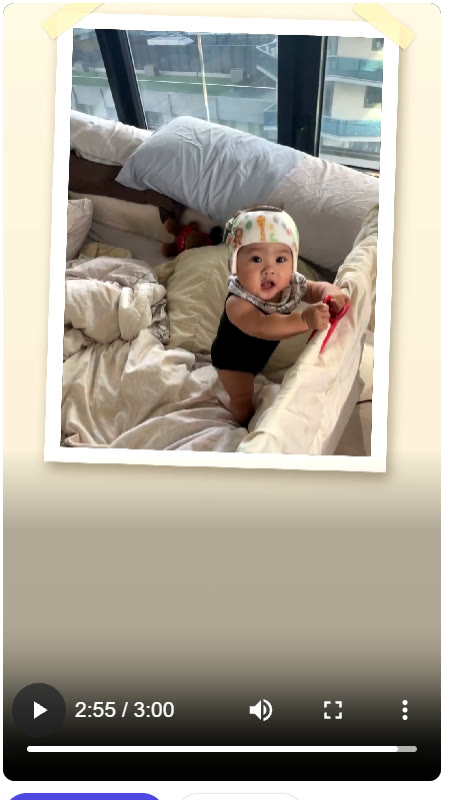
Shape sets the frame: 9:16 vertical for phones, Reels and TikTok; 16:9 for a TV or YouTube; 1:1 or 4:3 if you need them. The framing in Step 6 is worked out again for whichever shape you choose.
Notes is free text for anything else ("keep the cake clip whole", "slower in the last chapter"). The planner reads it.
Step 10: Build it, on your PC for free or in the cloud
Press Rebuild with these changes (or Build the first time). Before anything happens, a summary shows exactly what will be built:
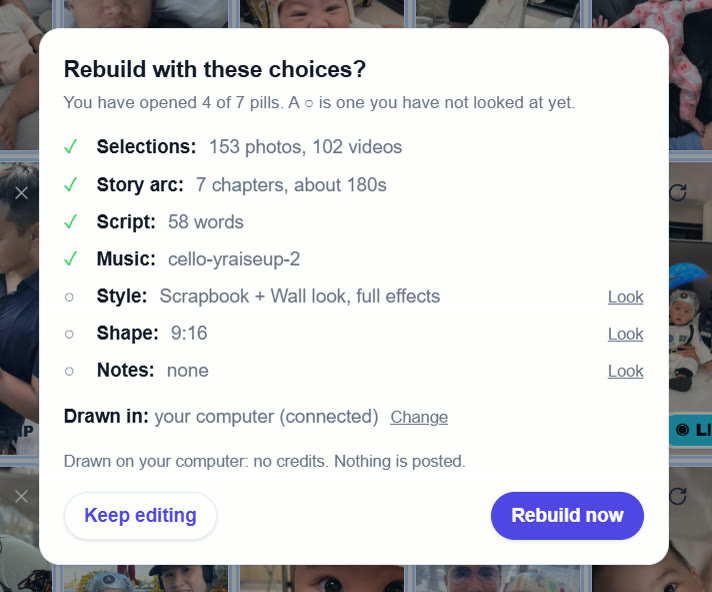
The choice that matters here is Drawn in: Cloud or My computer.
Option A: Render free on your PC with the ViralSpin connector
The ViralSpin connector is a small free app that lets the studio draw videos on your own computer. Your computer does the heavy lifting, so it costs no credits, and on a modern laptop it's fast: our 3-minute, 5,400-frame album drew in about 25 minutes on a Ryzen 9 laptop.
- Download the connector for your computer:
- Windows: ViralSpinBridge.exe
- macOS: ViralSpinBridge-mac.zip
- Run it. It sits in your system tray (Windows) or menu bar (Mac) and signs in with your ViralSpin account the first time.
- In the studio, choose My computer next to the Build button. The badge beside it turns green and says Connected.
- Press Rebuild now. Your PC takes the job, downloads the pictures it needs (it keeps them, so the next build of the same album is faster), and starts drawing. While it draws, the badge reads Connected · drawing, and the panel shows when it started, how long it has been running and how far it is.
Option B: Render in the cloud for a few credits
Choose Cloud and ViralSpin's render servers draw it. Nothing runs on your computer, so you can build from a phone, a Chromebook or a work laptop, and close the lid. It uses a few credits from your balance (the summary shows the cost before you press Rebuild). If you need more, buy credits here.
Run both at once
You can start a computer build and a cloud build of the same album side by side, for example to compare two looks. Each one is listed under Earlier versions with a coloured tag (green On your computer, blue In the cloud) and its own progress bar. Changed your mind? Stop this build cancels it.
Step 11: Watch the build
The build has two parts.
Laying out the chapters. ViralSpin places every picture in its chapter, frames it around the faces, plans every shot, places the clips and mixes the music. This takes a minute or two.
Drawing the video. Every frame is drawn: 30 per second, 5,400 for three minutes. Open Full screen to watch your album assemble itself in the build space, the same animation at the top of this article.
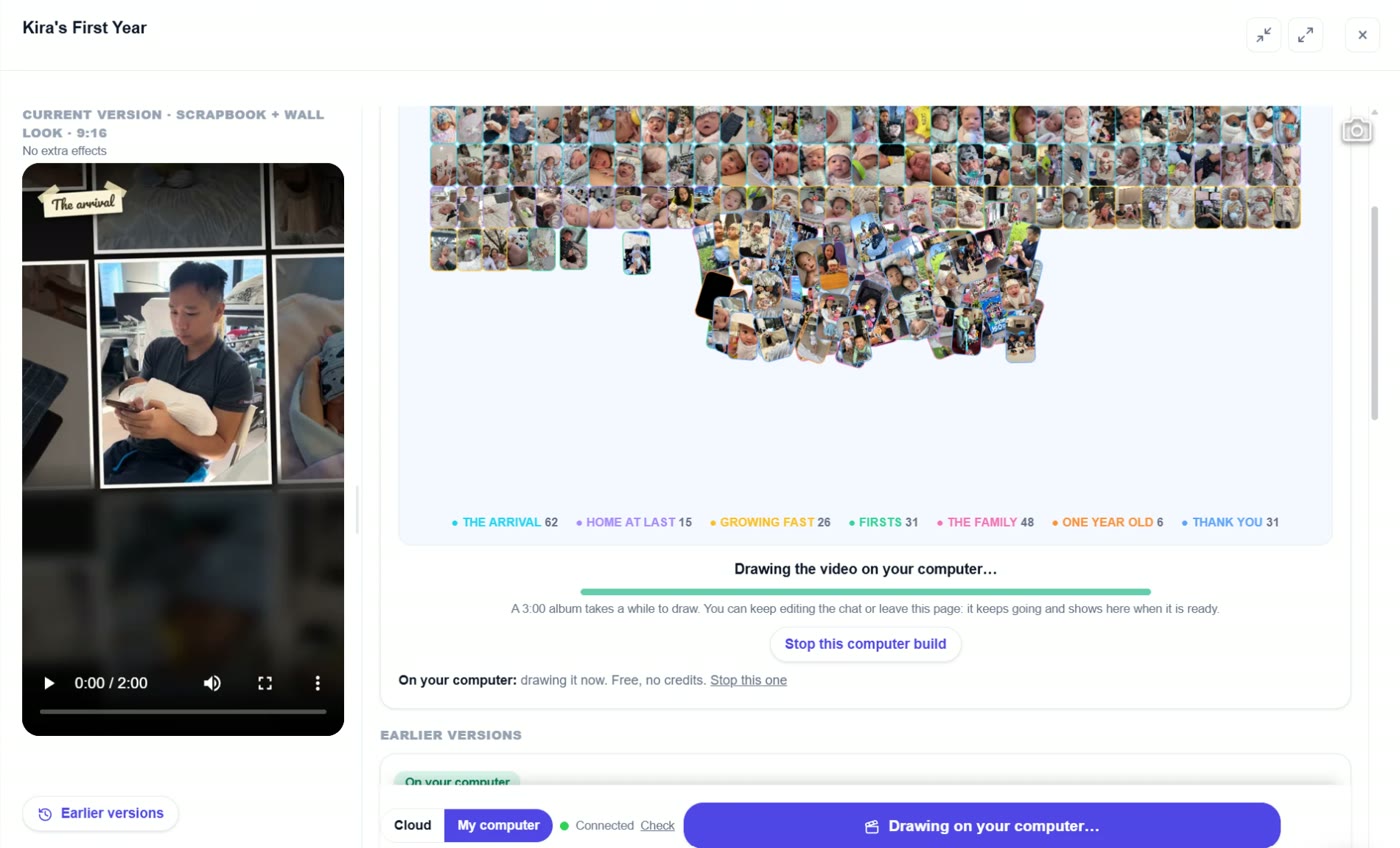
If the video doesn't play when it lands (a browser sometimes holds an old copy), press Reload video under it instead of refreshing the whole page.
Step 12: Review, change, rebuild
Watch it through once without stopping. Then go back with the scrubber and note what you'd change. The usual fixes, and where they live:
| What you notice | Where to fix it |
|---|---|
| A photo you meant to cut | Selections: × on its card |
| Wrong order in a chapter | Selections: drag the cards |
| The video doesn't end on the right picture | Selections: put that picture last in the last chapter |
| A head cut off | Click the picture ▸ drag it in the frame, or Pan between the people |
| A clip starts too early | Right-click ▸ Trim this clip |
| Quiet start to the music | Music: drag the green handle to the first note |
| A chapter too long or short | Story arc: change its start time |
| The whole thing too short | Ask in the chat: "make it 3 minutes" |
Each change saves itself. When you're happy, press Rebuild with these changes. The new version replaces the one at the top, and every earlier version stays listed below (and in your Generations), so nothing is lost if you liked the previous one better.
Step 13: Share it
Press Go to Publish to post it straight to Instagram Reels, TikTok or YouTube Shorts, now or at a scheduled time, with a caption written for you. Or press Download for the MP4 to play at the party, send in the family group chat, or keep.
Because the draft lives in your account, you can also open it on the ViralSpin iPhone app to share from your phone.
Why this works better than a slideshow app
It's worth being specific about what changes, because the time saved is in the details.
Collecting is one step, not five
Pictures from Google Photos, your iPhone and uploads land in one Media library and stay there. You pick once. The next album (the second birthday, the holiday) starts with everything already in place.
The AI makes the first draft of every decision
Choosing chapters, sorting 250 pictures into them, framing each one, placing the clips and laying out the shots are the decisions that take hours. ViralSpin makes a sensible first pass at all of them in a couple of minutes. Your job becomes reviewing and correcting, which is much faster than deciding from scratch, and much more enjoyable.
Faces are a first-class concern
In a family album the faces are the point. Framing around faces, refusing to crop through a head, panning between two people, and keeping faces clear of the captions are built into every picture, not left to a "fit / fill" toggle.
Clips keep their speed and their sound
Real-speed clips, trimmed to the moment, with their own sound under the music, two or three side by side when there's a lot of video. A first laugh should sound like a first laugh.
Rendering is free if you have a computer
Drawing on your own PC with the connector costs nothing, so you can rebuild as many times as you like. When you're away from your desk, the cloud is a few credits away.
Tips from making "Kira's First Year"
Start bigger than you need. We brought in about 900 pictures and kept 261. Picking from a big pile with search ("the park photos", "anything with grandma") is faster than going back for more later.
Fix the arc before the pictures. If The family and Thank you are in the wrong order, no amount of picture-shuffling will fix the story. Approve the arc, look at the sort, then fix pictures.
End on purpose. The last picture is what people remember. Put the one you want them to leave with at the end of the last chapter, and give the last chapter a few seconds more than it seems to need. ViralSpin fades the music out over the end.
Check wide group photos. They're the ones most likely to need a pan. There are rarely more than a dozen, and the panel shows the exact crop.
Trim the music's intro. It's the single fastest improvement to how the video feels. Zoom in on the waveform and start on the first strong note.
Keep the laptop awake for a PC render. Plugged in, lid open. A 3-minute album with a lot of side-by-side clips can take longer than the 25 minutes ours took.
Use Notes for anything you can't click. "Keep the cake clip whole." "Slower in the last chapter." The planner reads them.
Frequently asked questions
Can I make an album without the chat?
Yes. Every step has buttons: the pills along the top of the editor (Media library, Selections, Story arc, Script, Music, Style, Shape, Notes, Render, Publish) cover everything. The chat is there to do things faster ("make it 3 minutes", "move the cake photos to One year old"), and it can point you to the right pill.
How many pictures can I use?
Our album used 261 in three minutes, which is brisk but works because the Wall shows many pictures at once. For a calmer feel, aim for 60-80 pictures a minute or make the video longer.
Does it work for things other than babies?
Yes. Weddings, memorials, retirements, graduations, a year in the life of a team, a holiday. The story arc is written for whatever you describe.
What happens to my photos?
They are stored in your ViralSpin account so your drafts keep working, and used only to make your videos. They are never published unless you press Publish.
What if the render fails?
You'll see the reason in the build panel, and your credits are not used for a cloud render that fails. Press Rebuild to try again. Most failures come from a single unreadable file, and the panel tells you which.
Get started
- Open the studio: app.viralspin.ai
- Optional, to render free on your PC: download the connector for Windows or macOS
- Optional, to render in the cloud: buy credits
Start with a conversation: "Make a photo album video of ..." and let ViralSpin take it from there.