ViralSpin Academy
Related Reading
Start with one folder of a few hundred files to learn the controls, then point it at the big backup. Sorting never moves a file. Only the separate Move step does, and Move has an Undo button.
Sort thousands of photos
on your own computer
 AITechDad
•
Updated November 2026
Your camera roll backup is one giant folder with no order to it.
Selfies, receipts, sunsets and the same photo three times over.
ViralSpin's sorter reads it on your own computer, works out what each picture shows and deals it into folders while you watch.
Here's how to set it up from scratch, plus everything it can do once it's running.
Why sort your photos this way?
Most of us back up our phones the same way. Plug it in, copy the camera folder to a drive, and promise to sort it "later". Later never comes. A year on, the folder holds 4,000 files called IMG_4821.HEIC and PXL_20260614_183302.mp4. They're in no useful order, and a third of them are screenshots, receipts or the same photo three times over.
There are two usual fixes, and both cost you something:
- Upload everything to a cloud photo service. It sorts well, but your whole library now lives on someone else's servers. A big backup also takes a long time to upload, and often needs a paid storage plan.
- Sort by hand. Drag files into folders one at a time. For a few hundred photos that's an afternoon. For a few thousand, it doesn't happen.
ViralSpin's sorter takes a third route. The smart part runs on your own computer. A small connector app reads the folder where it already is. It uses a picture model running locally to work out what each photo shows, and sends the website only the result: folder names and counts. The website draws the animation, using your real pictures, which it fetches straight from your own computer. Your photos never cross the internet to get there.
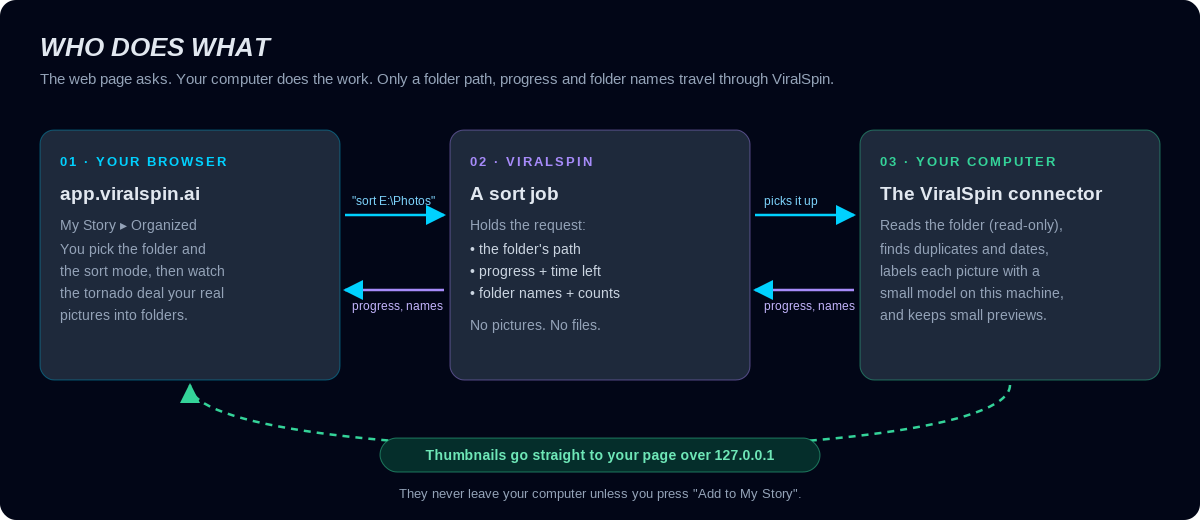
It's built for creators. Once your pictures are sorted into real topics like "Beach & sea", "Coffee & food" and "Desk & laptop", ViralSpin can pick B-roll for a reel or slides for a carousel by topic. But you don't need to make a single video to use it. Plenty of people just want a tidy photo library, and the sorter does that on its own.
What you need before you start
You need very little, and all of it is free to set up:
- A Windows PC or a Mac. The sort runs on this computer, so use the one whose drive holds the photos. Folders on an external or USB drive work too, as long as the drive is plugged in.
- A ViralSpin account. Sign in at app.viralspin.ai with Google.
- Chrome or Edge. The sort works in any browser, but these two show your real pictures flying in the animation. Some browsers block a web page from reading thumbnails off your own computer. When that happens, the animation falls back to coloured tiles and the page tells you why.
- Some free disk space. The connector's first launch downloads its tools (about half a gigabyte, once). The first By topic sort adds a small picture model (about 150 MB, also once). The small previews it keeps take far less space than the photos.
- A folder of photos and videos. It reads
.jpg,.jpeg,.png,.heic,.gif,.webp,.bmpand.tifpictures, and.mp4,.mov,.m4v,.webm,.aviand.mkvclips. It walks every folder inside the one you choose, so you can point it at the top of a whole backup.
Step 1: Download the ViralSpin connector
The connector is a small app that sits in your system tray (Windows) or menu bar (Mac). It's how the ViralSpin website gets work done on your computer, both for sorting folders and for rendering videos on your own machine. These links always point to the newest build. The address stays the same, and every new release replaces the file behind it.
Download the latest connector
ViralSpin connector for Windows (ViralSpinBridge.exe, about 55 MB)
ViralSpin connector for Mac (ViralSpinBridge-mac.zip, about 42 MB)
Most recent build: 1 November 2026. Each download has a SHA-256 checksum next to it: add .sha256 to the end of the link.
On Windows
- Double-click ViralSpinBridge.exe in your Downloads folder.
- Windows may show a blue box saying it protected your PC from an "unknown publisher". The connector isn't code-signed yet, so Windows hasn't seen it many times. Click More info, then Run anyway.
- A ViralSpin icon appears in the system tray, in the bottom-right corner near the clock. Look under the small ^ arrow if you can't see it.
On a Mac
- Double-click ViralSpinBridge-mac.zip to unzip it. You'll get ViralSpin.app.
- Drag it into Applications (optional, but tidier).
- Right-click ViralSpin.app and choose Open, then confirm. Right-click is how macOS lets you open an app from outside the App Store for the first time. After that, a normal double-click works.
- A ViralSpin icon appears in the menu bar at the top of the screen.
Step 2: Connect it to your account (once)
On its first launch, the connector opens your browser and asks you to approve it for your ViralSpin account. Sign in if you need to, approve it, and you're done. That approval lets the connector pick up sort jobs that you start, and only yours. It then downloads the tools it needs in the background. That's the one-time half-gigabyte, and it may take a few minutes on a slow connection.
From then on, the connector starts by itself when you sign in to your computer. You don't need to open it again. If you ever quit it from the tray or menu bar, just open it again.
npm i -g @viralspin/mcp, then viralspin-mcp login, then viralspin-mcp watch --install (starts it at sign-in) and viralspin-mcp watch (starts it now). The tray app does all of this for you, so you only need this route if you prefer it.Step 3: Open My Story ▸ Organized
Go to app.viralspin.ai and open My Story. It's the library of your shots, reactions, B-roll and work. Along the top are tabs: Shots, Reactions, B-roll, My work, Organized. Pick Organized.
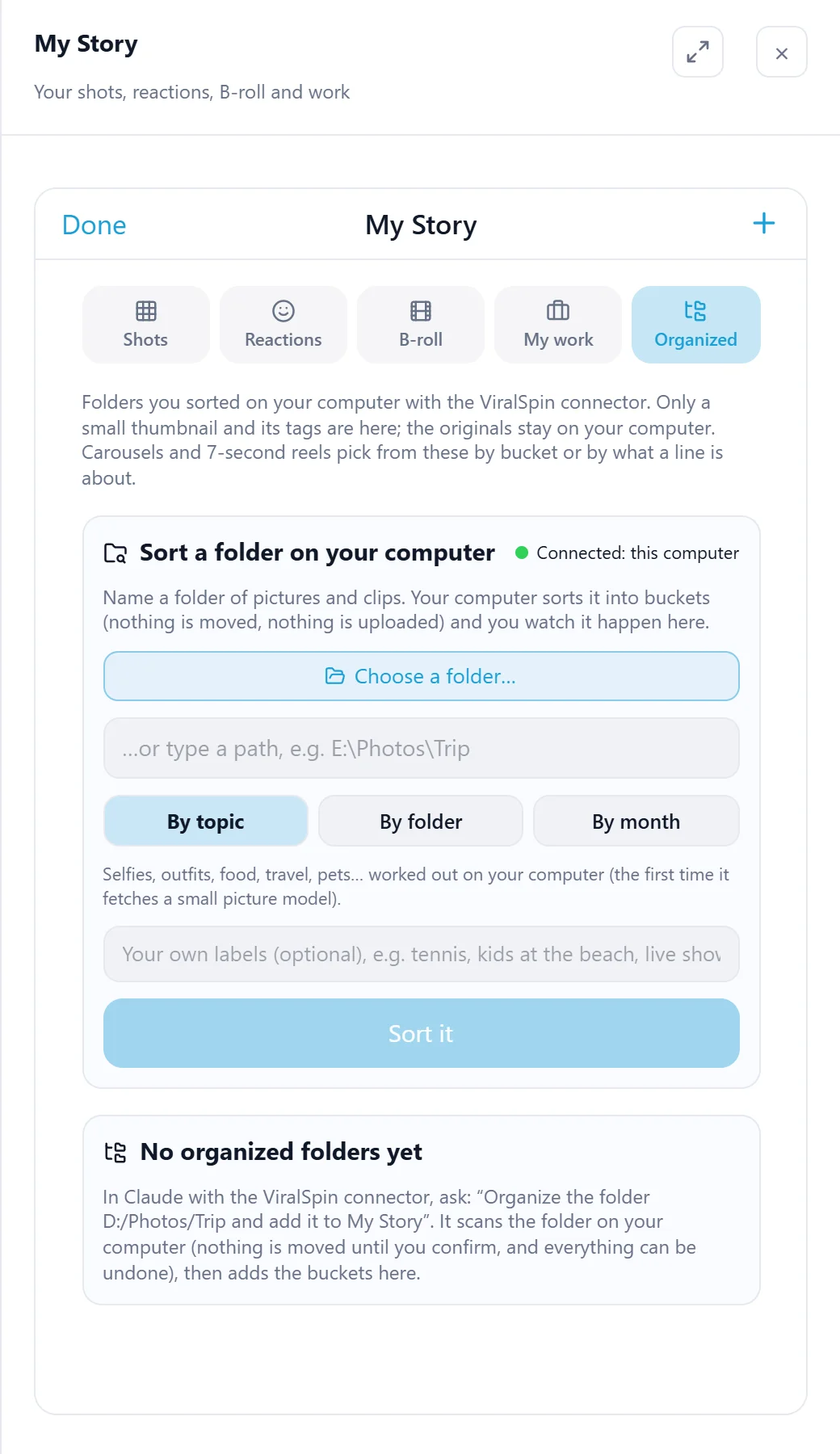
Check the top-right of the Sort a folder on your computer card. It should say Connected: this computer with a green dot. If you see an orange note saying "The ViralSpin connector isn't running on your computer" instead, the page can't find the connector yet. Open it from the Start menu or Applications, then press Check. The note includes a Get it link to the same download as above.
Step 4: Choose the folder
You have two ways to tell it which folder to sort:
- Choose a folder… opens your computer's own folder picker. On Windows it's the normal Explorer window, with a button that reads Sort this folder. On a Mac it's the standard "choose folder" sheet. The picker opens in front of your browser, so you don't have to hunt for it.
- …or type a path. Paste the location straight into the box, such as
E:\Phone backup\2026\Cameraon Windows or/Users/you/Pictures/Tripon a Mac. To copy a path on Windows, right-click the folder in Explorer and choose Copy as path.
The sort covers everything inside that folder, sub-folders included. Choose the top of a backup to sort all of it, or a single trip folder for a quick one.
Step 5: Pick how to sort it
Three buttons decide what the folders are based on:
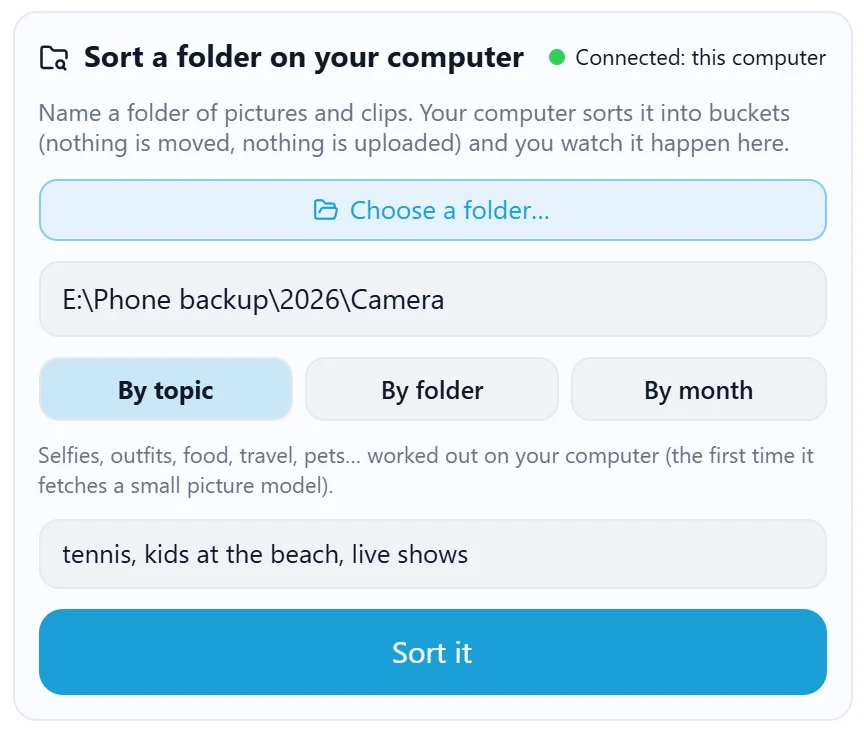
By topic (the clever one)
Your computer looks at each picture and works out what it shows. It knows about sixty everyday subjects: selfies, mirror selfies, people talking to camera, outfits, shoes and accessories, food, coffee, desserts, restaurants and city streets. It also knows landmarks, airports, hotels, beaches, mountains, sunsets, snow, flowers, parks, home interiors, architecture and sports from tennis to skiing. Then there's concerts, instruments, desks and laptops, meetings, whiteboards, screenshots, documents and receipts, charts, dogs, cats, babies, kids, family, weddings, birthdays, parties, holidays, cars, products, gadgets and shopping.
Each picture gets up to three labels, used for search and filters, and one folder. The folder is chosen sensibly. If enough pictures share a fine label (at least six, or 2% of the folder), it gets its own folder, like Tennis. If not, its pictures join the broader group it belongs to, like Sport & wellness. So a backup full of beach days gets a Beach folder, while one stray tennis photo doesn't get a folder all to itself.
The first time you sort by topic, the connector downloads the small picture model (about 150 MB). It's an open model called CLIP, and it runs on your computer. After that it's cached, so later sorts start straight away.
Your own labels. Below the buttons is a box for labels of your own, such as tennis, kids at the beach, live shows. Anything you type there always gets its own folder, however few pictures match. The model compares every picture with your words, so you don't have to tag examples first.
By folder
One folder per sub-folder inside the one you chose. It's useful when your backup already has some structure, like one sub-folder per trip, and you just want it counted, cleaned of duplicates and made browsable.
By month
One folder per month the photos were taken. That's not the date the file was copied, which is usually the day of your backup. The connector reads the date stored inside each photo and video. That's what makes it more useful than sorting by "Date modified" in Explorer or Finder, which puts every file on the day you copied it.
Step 6: Press Sort it and watch
Press Sort it. For a second the page says "Waiting for your computer to pick it up…". Then the connector takes the job and the progress line comes alive.
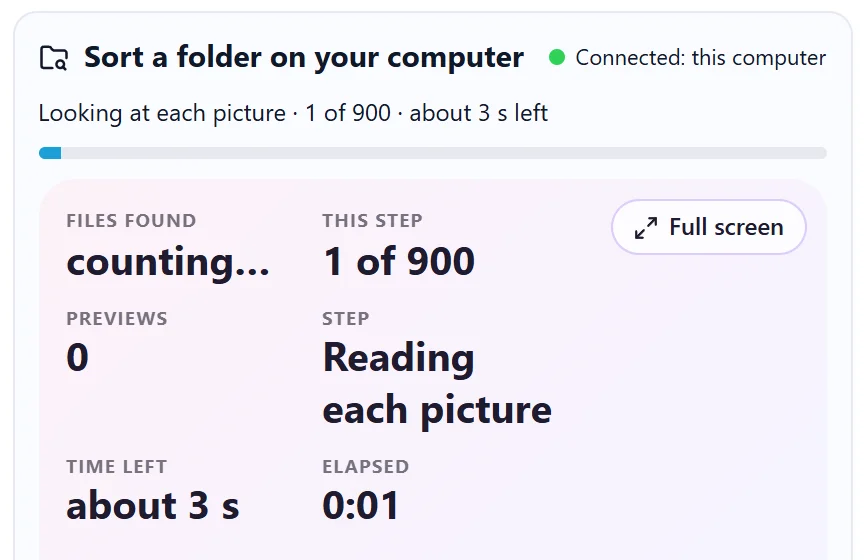
Behind the progress line, your computer works through five steps:
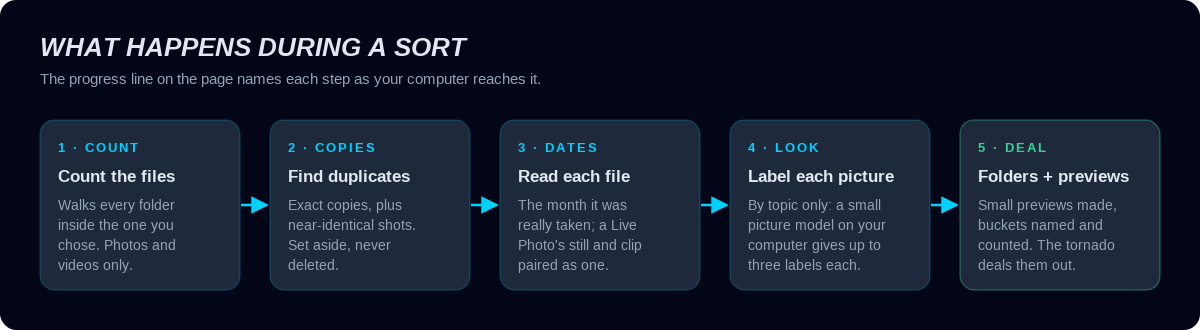
- Counting the files. It walks every folder and counts the photos and videos. A big backup takes a minute to list, and the count climbs as it goes.
- Finding duplicates. It looks for exact copies (same file, byte for byte) and near-identical shots (the same picture, resized or saved again). The oldest file counts as the original. The rest are set aside as duplicates. Nothing is deleted.
- Reading each file. It reads the date each photo was really taken. It also pairs Live Photos: an iPhone Live Photo is a still and a short clip with the same name (
IMG_1234.HEIC+IMG_1234.MOV). The sorter treats the pair as one moment, so the clip doesn't show up a second time as a separate video. - Looking at each picture (By topic only). The picture model labels every photo. On a typical laptop this is the longest step, a fraction of a second per picture.
- Making small previews. It makes small thumbnails, kept on your computer, which the animation and the folder views use.
You don't have to watch. Close the tab and come back later, and the sort keeps going on your computer. If you change your mind, Stop and start over cancels it. Nothing has been moved, so you can start a new one straight away.
The tornado
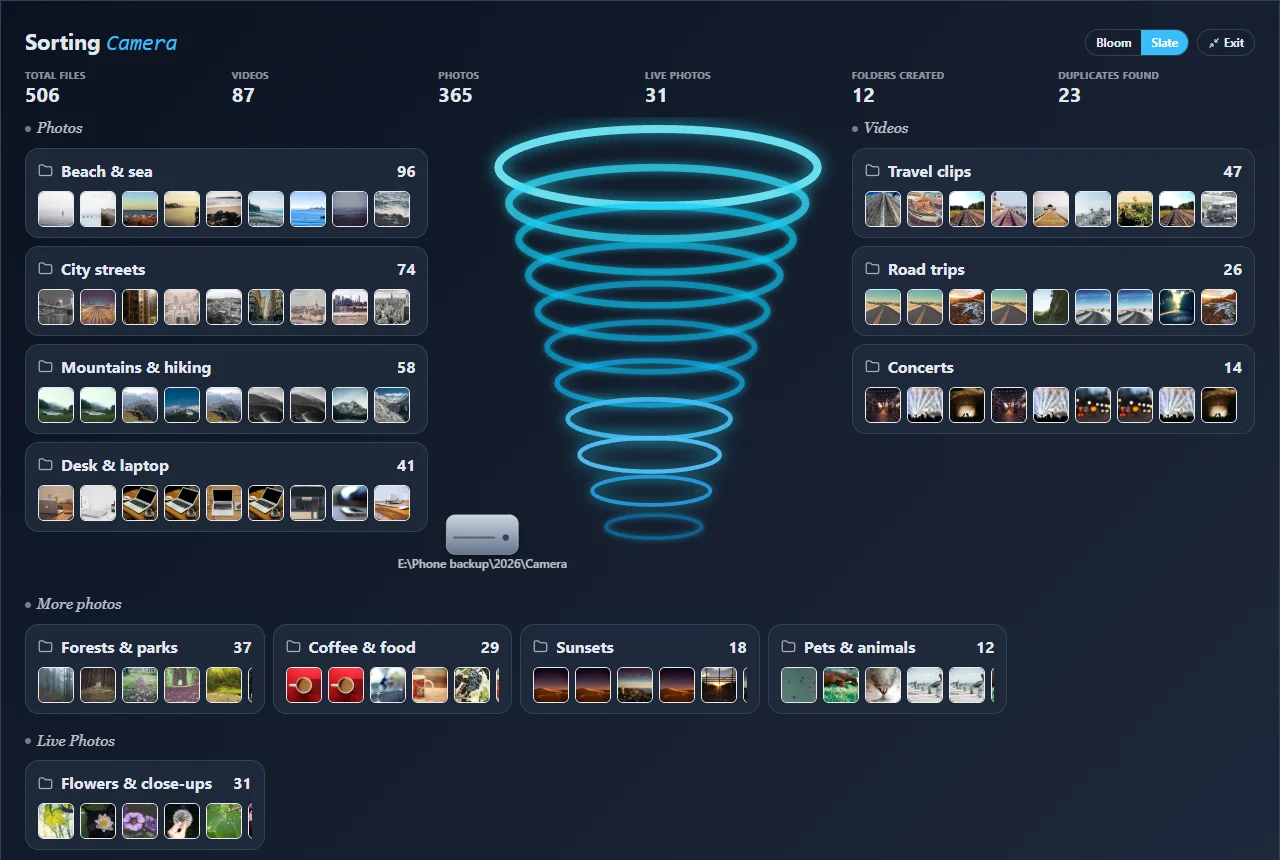
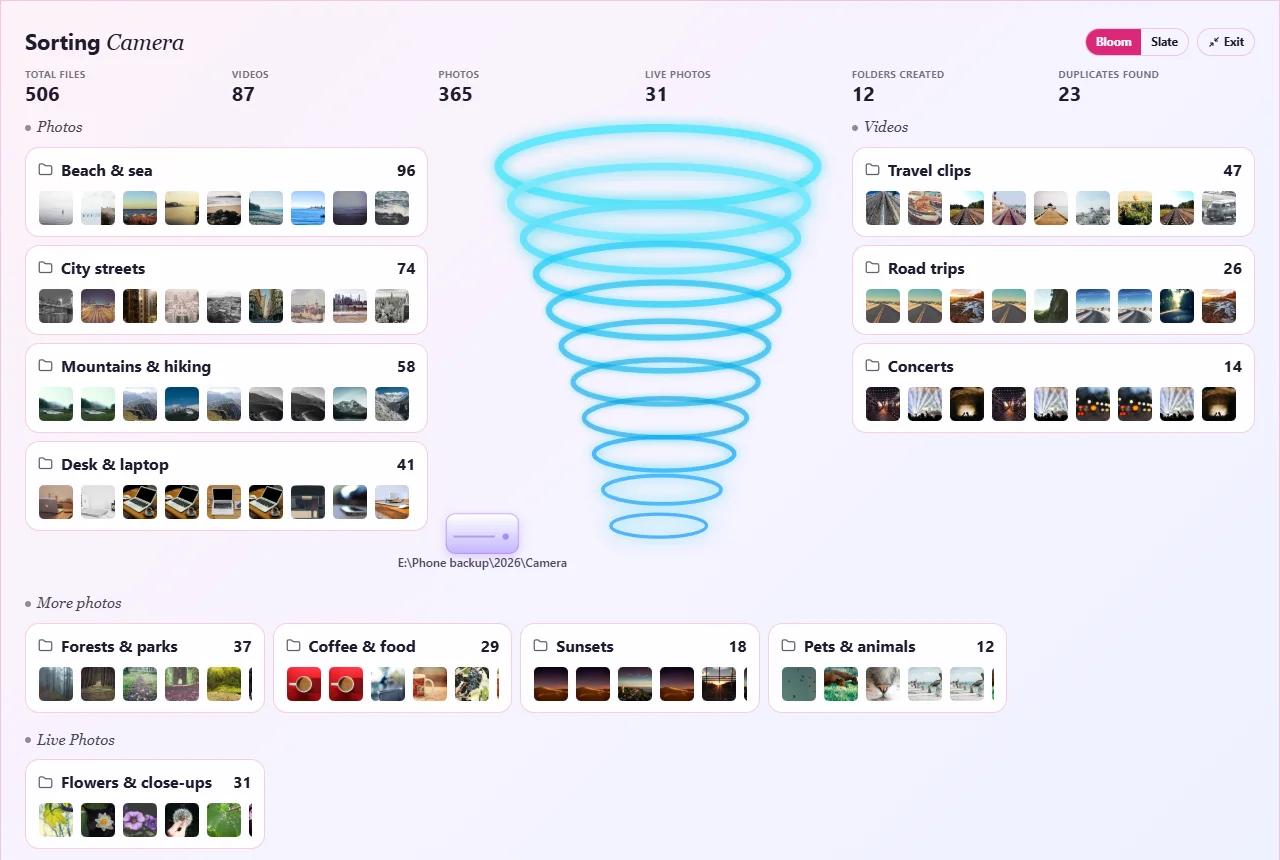
When the sort is ready, the animation plays. A drive icon labelled with your folder's full path pours your pictures into a glowing blue tornado. The tornado deals them out, one after another, into the folder cards around it. It's the loop at the top of this page.
- Photos are on the left and Videos on the right. Live Photos have their own row below, because a still with motion is ideal for a 7-second reel.
- Each card counts up as its pictures land, with a strip of its latest thumbnails.
- Along the top: Total files, Videos, Photos, Live Photos, Folders created and Duplicates found.
- Full screen fills your monitor with it, which makes a nice screen recording if you want to show off your sort.
- Bloom and Slate switch between a light look and a dark one.
- When it finishes, the tornado keeps spinning, now empty, in the middle of your folders. Watch again replays the whole thing.
Step 7: Check and fix the folders
No sorter is perfect, so a finished sort is easy to correct. Click any folder card to see every picture in it, served straight from your computer. Hover over a tile to see its file name, the month it was taken and its labels. Click it to see it larger.
A picture in the wrong folder? Tick it (or several), then press Not Folder name (for example, Not Beach & sea). The picture moves to its next-best folder and stays out of that one, even if you change the folders again later.
Change the folders in plain English. Under the animation is a box labelled Search or change these folders. Type a change and your computer applies it in seconds:
| You type | What happens |
|---|---|
add tennis |
A new Tennis folder, filled with every picture that matches |
remove tennis |
The Tennis folder goes, and its pictures return to where they were |
combine Family and Kids |
One folder instead of two |
rename Outfits to Looks |
The same folder with a better name |
hide Products |
The folder is hidden from the view |
That's fast because the first sort kept a fingerprint of every picture, a short list of numbers describing what it shows. Adding a label compares your words with those fingerprints. It doesn't look at the photos again, so it takes seconds even for tens of thousands of pictures. Every change is saved with the sort, in order, so adding a label later doesn't undo an earlier merge.
Search. The same box searches. Type what you're looking for, such as tennis skirt or beach sunsets, and the closest matches come back first. It works on what the picture shows, not on file names, so IMG_4821 isn't a problem.
Step 8: Decide what to do with the result
The sort itself changes nothing. When it's done you get three independent choices, and you can take any of them, all of them or none:
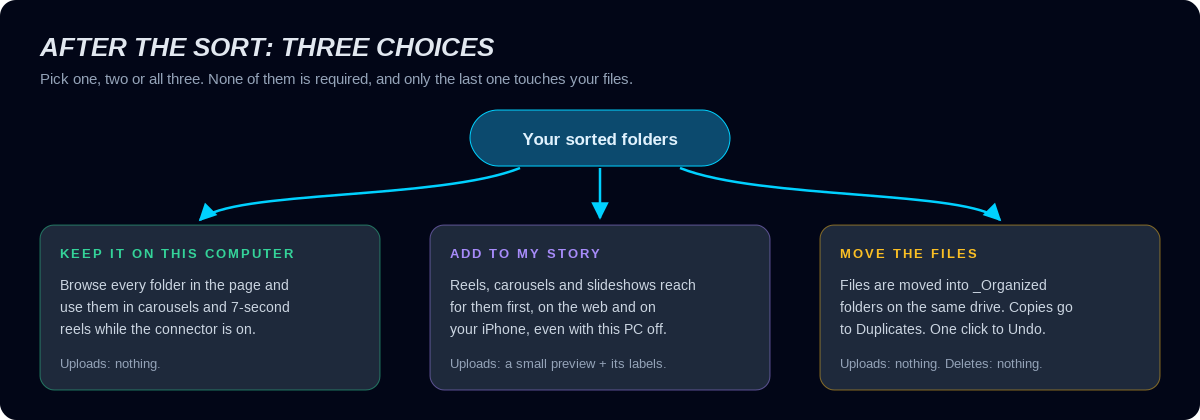
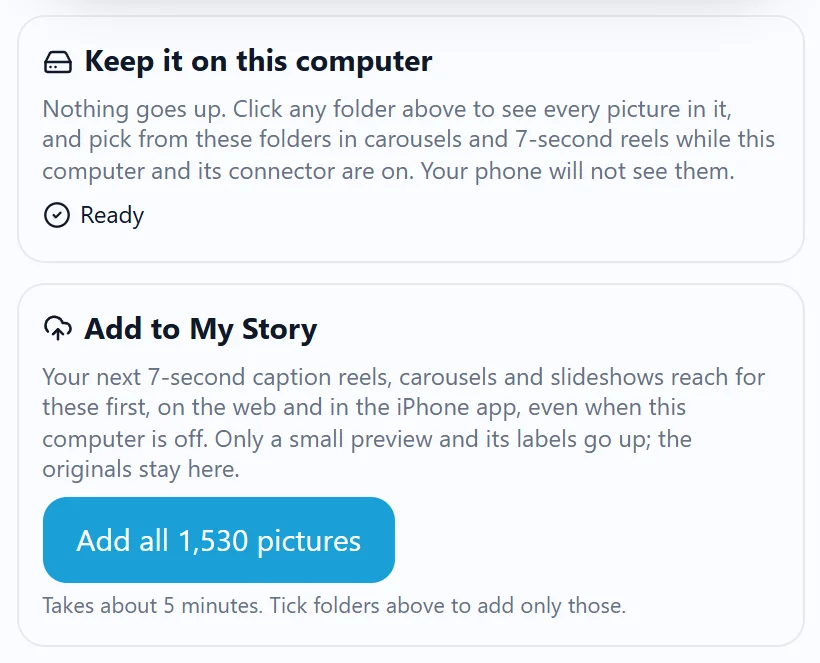
Keep it on this computer
This is the default, and it uploads nothing. Your sorted folders are ready to browse in the page. You can also pick from them while making carousels and 7-second reels on this computer, as long as the connector is running. Your phone won't see them, because they never left the computer.
Add to My Story
Press Add all … pictures, or tick just the folders you want first so the button reads Add 3 folders (…). ViralSpin then uploads a small preview and its labels for each picture. The originals stay on your drive. After that, your next 7-second caption reels, carousels and slideshows reach for these pictures first. That works on the web and in the ViralSpin iPhone app, even when this computer is off. The page tells you how long it will take, roughly a minute per 300 pictures, and you can leave while it runs.
Back in My Story ▸ Organized, everything you've added can be filtered by folder, label, month, or photos, videos and Live Photos. You can also search it (tennis, beach 2023, IMG_1234).
Move the files (optional)
If you want the folders on your drive to change too, the page shows a preview of the moves, such as IMG_4821.HEIC → _Organized/Beach & sea/IMG_4821.HEIC, and a button: Move 1,530 files…
- Files are moved (renamed on the same drive), not copied, so they take up no extra space and a big folder moves in a minute or two.
- They go into an
_Organizedfolder inside the folder you sorted, with one sub-folder per bucket. - Duplicates go to a Duplicates folder. Nothing is ever deleted or overwritten.
- When it's done you'll see "Moved 1,530 files" and an Undo button. Undo puts every file back where it was. Files you've changed or re-created since are left alone and counted, so Undo never overwrites newer work.
Skip this if your folders are already the way you like them. The sort and My Story both work without it.
Turning a sorted folder into posts
This is where the sorter pays off for creators. With your folders in My Story, ViralSpin can do things like:
- Find reel material. In the ViralSpin chat, ask "find reel material from the last 30 days". You get your best clips and photos from that window in three piles: openers (you on camera), story moments with people, and B-roll. Untick anything you wouldn't post, press Make a draft, and it builds a story arc you approve before anything renders.
- Make a carousel whose slides are pulled from a folder or a topic ("my coffee shots", "the hiking ones").
- Make a 7-second caption reel with one line over footage chosen by what the line is about. A line about "my desk setup" reaches into Desk & laptop.
Prefer Claude? It works there too
If you use the ViralSpin connector inside Claude, you can do the same thing in a sentence: "Organize the folder D:/Photos/Trip and add it to My Story." It scans the folder on your computer the same way. Nothing is moved until you confirm, and everything can be undone. Then it adds the folders to My Story. If you haven't set Claude up with ViralSpin yet, our guide to publishing to Instagram and TikTok from Claude Code walks through adding the connector.
Troubleshooting
"The ViralSpin connector isn't running on your computer." Open the connector from the Start menu (Windows) or Applications (Mac), then press Check. If it was never installed, the Get it link downloads it. You're signed in to ViralSpin on this computer, right? The page looks for your connector.
It says "Waiting for your computer…" and nothing happens. The connector checks for new jobs every few seconds. If it's been more than a minute, quit it from the tray or menu bar and open it again. The job is still waiting and starts by itself.
The animation shows coloured squares instead of my photos. Your browser didn't let the page read thumbnails from your own computer. The page says so under the animation. Chrome and Edge show the real pictures. The sort itself is unaffected.
Windows says the app could harm my PC. That's SmartScreen being cautious about a new, unsigned app. Choose More info ▸ Run anyway. Each download has a checksum (add .sha256 to the link) if you want to check the file is the one we published.
The By topic sort is slow the first time. The first By topic sort downloads the picture model (about 150 MB), then looks at every picture once. Later changes, like adding a label, merging or renaming, take seconds.
A sort says it stopped at 5,000 files. Older versions of the connector stopped at 5,000 files. If you see that note, press Sort the whole folder. The new sort covers everything, pairs Live Photos and reads the real date of each photo.
Everything it can do, at a glance
| Capability | What it means for you |
|---|---|
| Sorts on your own computer | Your photos aren't uploaded to be sorted |
| By topic / By folder / By month | Folders by what's in the picture, by your existing sub-folders, or by the month it was taken |
| Your own labels | Type "tennis, kids at the beach" and get those folders, however few pictures match |
| Duplicate finder | Exact copies and near-identical shots set aside and counted, never deleted |
| Real dates | Uses the date the photo was taken, not the day you copied it |
| Live Photos paired | A still and its clip count as one moment |
| Photos, Videos, Live Photos | Shown separately, so you can find motion fast |
| Fix in plain English | add, remove, combine, rename, hide, all in seconds |
| "Not this folder" | Tick wrong pictures and they move to their next-best folder |
| Search by meaning | "tennis skirt", "beach sunsets", no file names needed |
| Live tornado animation | Watch your real pictures being dealt, full screen, two looks, Watch again |
| Keep local / Add to My Story | Use folders on this computer, or upload small previews for reels and carousels everywhere |
| Move files + Undo | Optional real folders on your drive, reversible, nothing deleted |
| Works from Claude | "Organize the folder … and add it to My Story" |
Download the connector for Windows or for Mac, open My Story ▸ Organized at app.viralspin.ai, and sort your first folder.