ViralSpin Academy
Related Reading
Share it in the moment you see it. If you're not ready to film, the link still lands in Saved, so the idea is waiting the next time you open the app instead of buried in your likes.
Replicate a post you love
with Share-in
 AITechDad
•
Updated November 2026
You see a post that works. You know you could make your own version.
Then you close the app and forget about it.
Share-in turns that moment into a script in your voice, a teleprompter and a scheduled post.
This is the whole flow, one screen at a time.
Most creators already know how to find ideas. They scroll and spot a post that's working, and think "I could do that, my way." The idea dies in the gap between thinking that and actually filming. You'd have to save the link, transcribe it, rewrite it, set up a teleprompter and then edit the video.
Share-in removes that gap. It works from the share button in TikTok, Instagram, YouTube, Facebook and LinkedIn, and from Safari for articles.
Step 1: Share the post to ViralSpin
Open the post and tap Share. In TikTok, tap More if ViralSpin isn't in the first row, then pick ViralSpin. The same works from the share sheet in Instagram, YouTube, Facebook, LinkedIn and Safari.
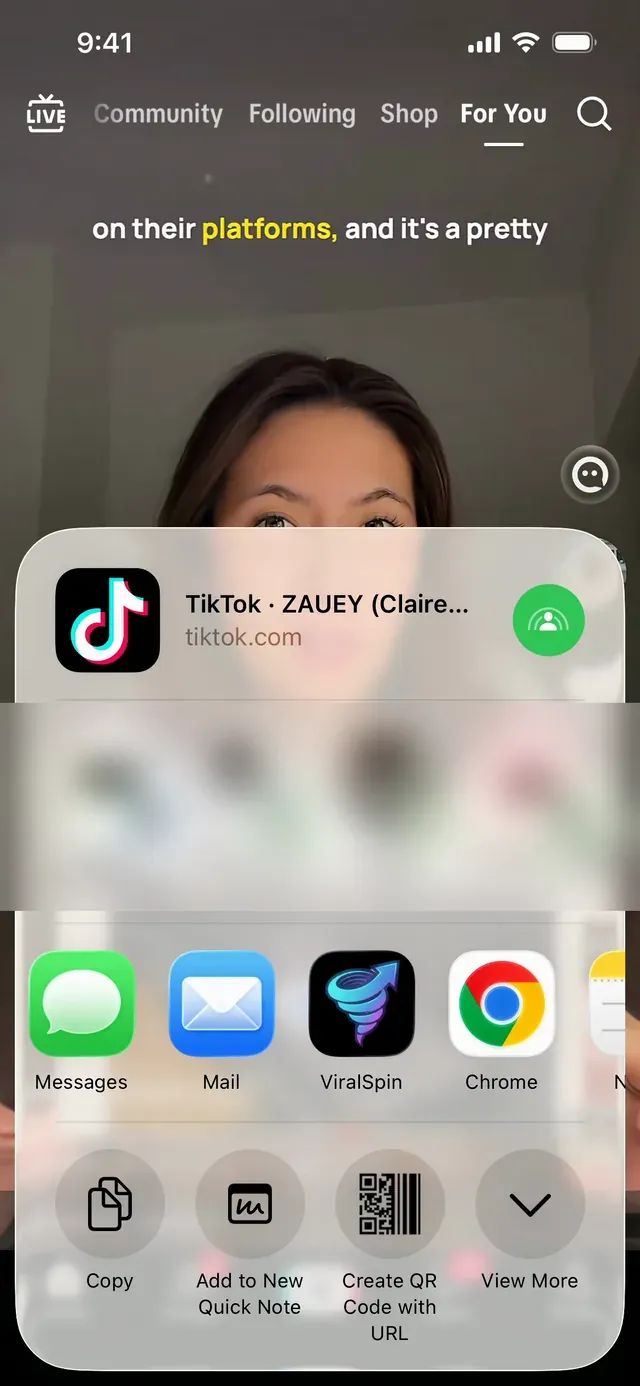
A banner confirms it was saved to ViralSpin. You don't have to act on it now. Every post you share in also lands in Saved on the Repurpose screen, so you can share five ideas on the train and film them tonight.
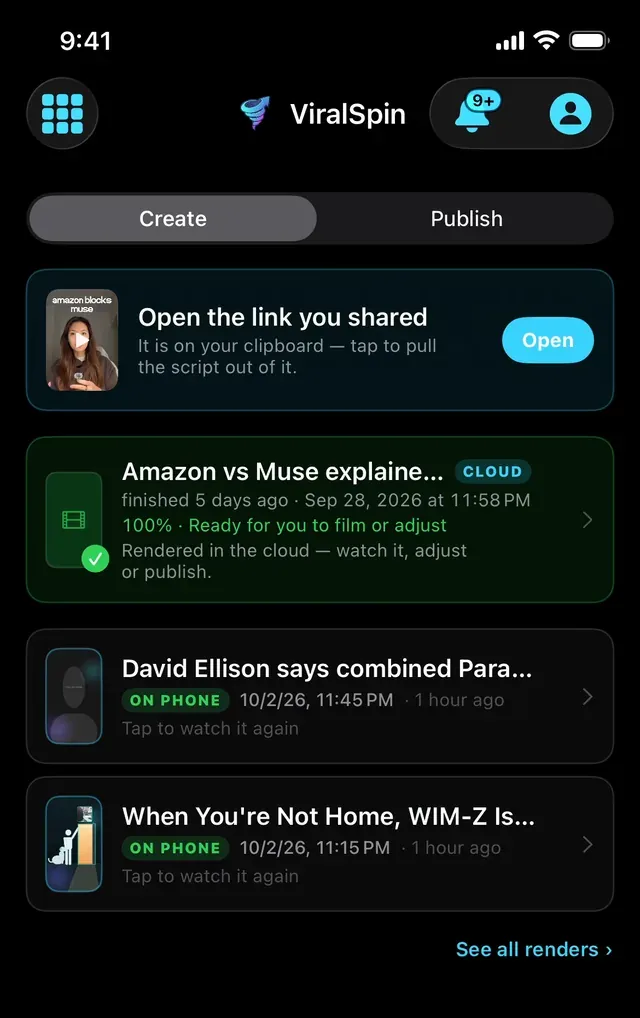
Step 2: Open the link you shared
Open ViralSpin. The first thing on Home is a card that says "Open the link you shared", with the post's own thumbnail so you know which one it is. Tap Open.
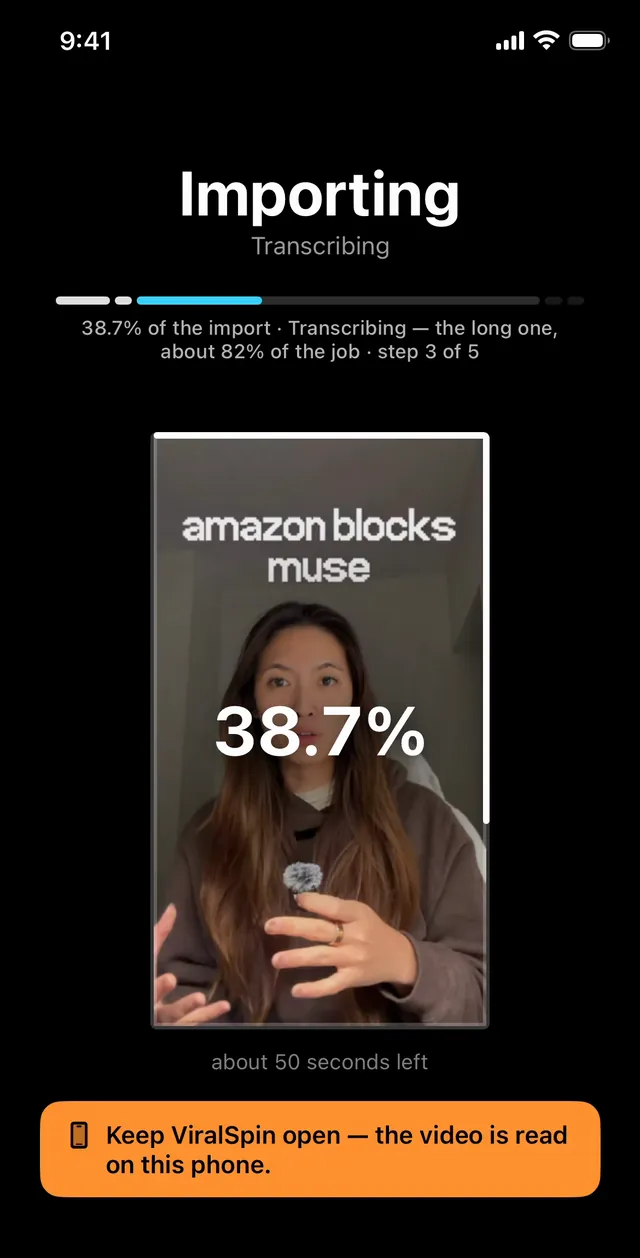
Step 3: It pulls the post in and transcribes it
ViralSpin gets the video, transcribes what's said, and rewrites it in your voice. The progress screen tells you which step it's on and roughly how long is left. Keep the app open while it reads the video.
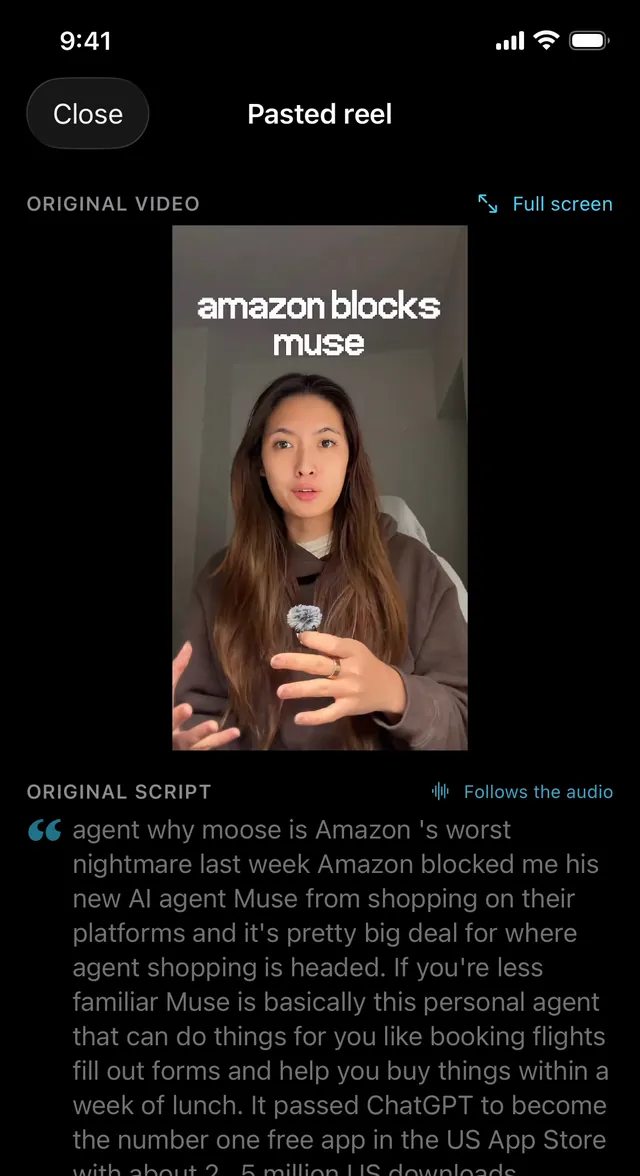
When it's done you can see exactly what you started from: the original video and the original script, word for word. Reread it here. It's the fastest way to see why the post worked: how the hook opens, where the turn comes, and what the payoff is.
Step 4: The script, in your voice
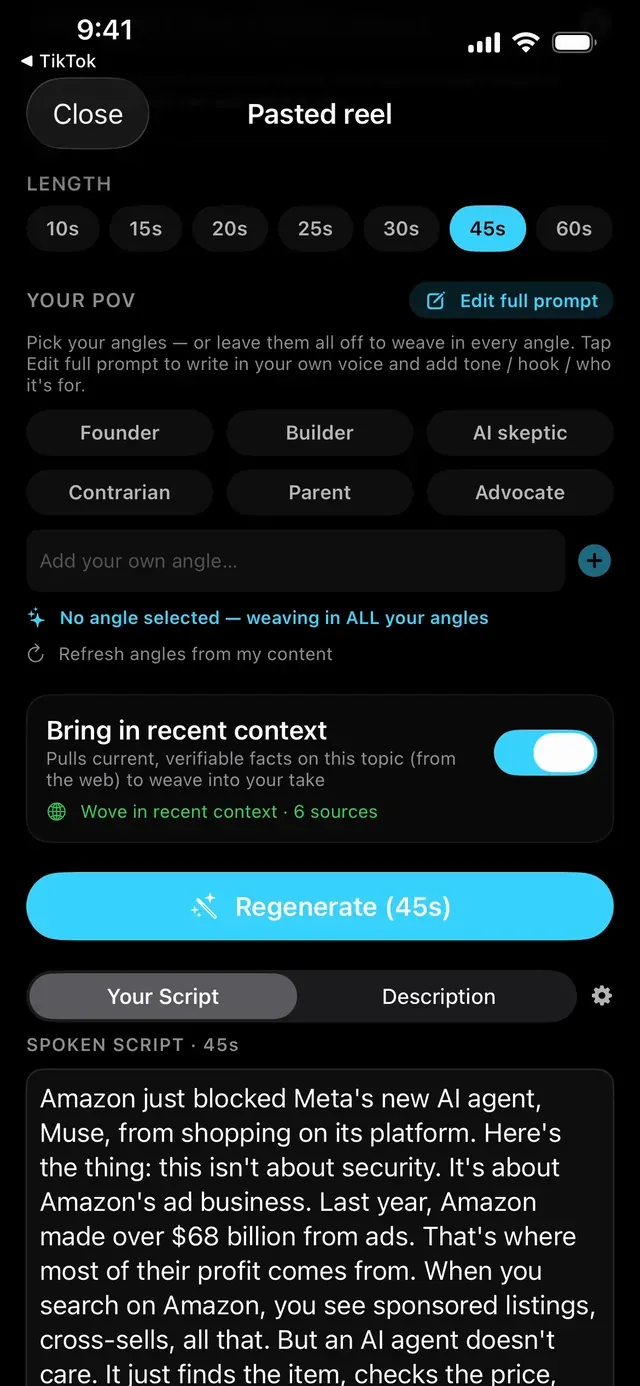
Below the original is your script. It isn't a copy. It's rewritten from your point of view:
- Your POV. Pick angles like Founder, Builder, AI skeptic, Contrarian, Parent or Advocate, or add your own. Leave them all off and it blends all of your angles together.
- Length. Tap a length chip (20s for a quick hit, 45s when the idea needs room to land) and hit Regenerate.
- Bring in recent context. This pulls current, verifiable facts on the topic from the web and works them into the script, with the sources listed. Your version can be more up to date than the post you started from.
Step 5: Pick what it becomes
The same idea can be posted in more than one shape:
| Format | What you get | Camera? |
|---|---|---|
| Talking head | Your script on the teleprompter, filmed by you | Yes |
| 7s caption reel | A short reel built around one punchy line | No |
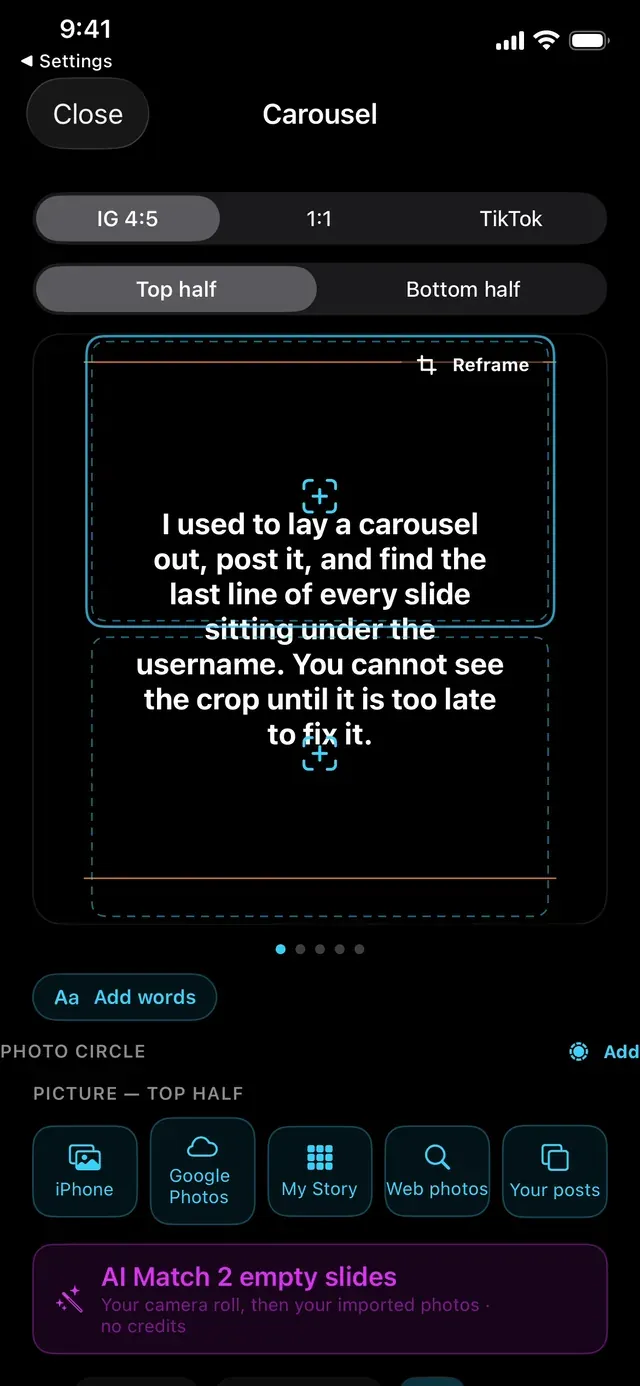
| Carousel / split-screen carousel | Slides, with a picture on top and words below in the split layout | No |
| Story video | An article's photos and lines, cut into a short film with music | No |
A video post opens as a talking-head script. A slideshow post opens as its slides, and an article offers Make it a story video. You can make a different format from the same link later. See Paste a URL to repurpose anything for the "Make it into…" menu.
Step 6: Film once on the teleprompter
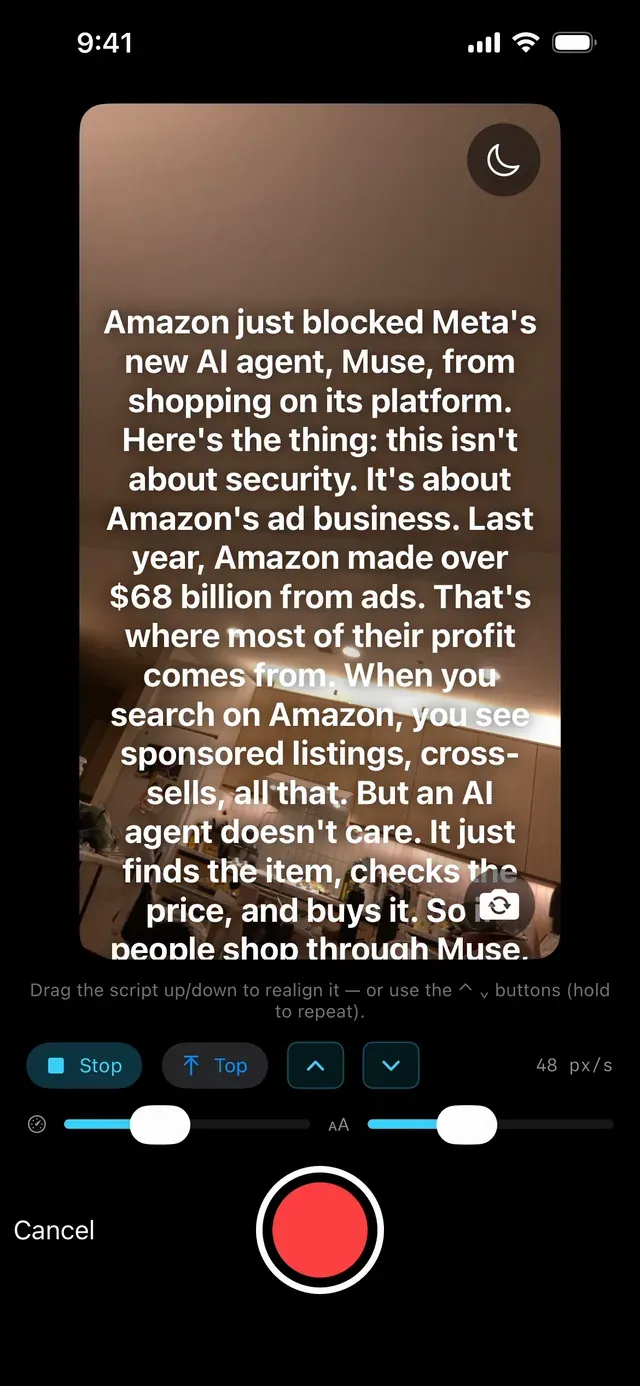
For a talking head, tap See it before you film it to preview the finished reel with a stand-in, or go straight to Film this. The script scrolls over the camera at a speed you set. You read it once, looking at the lens.
Step 7: Picture-in-picture, captions and b-roll land
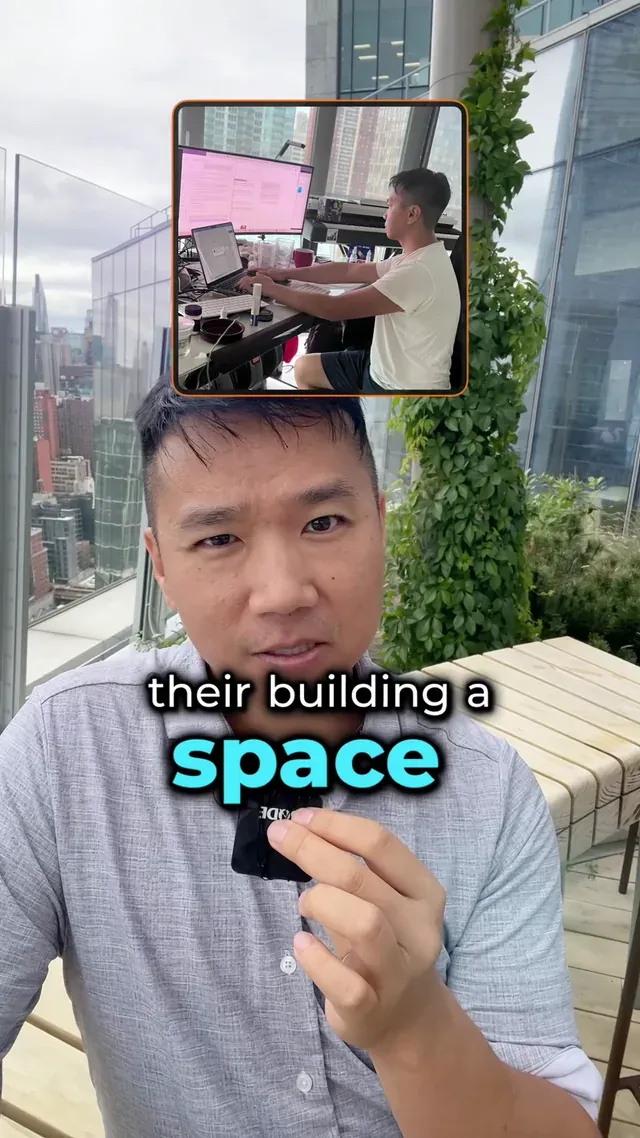
After you film, ViralSpin builds the edit for you. Your take gets captions and a picture-in-picture window, and b-roll and motion cards are placed on the beats of the script. If something's off, open the editor and hold the mic to say what to change.
Step 8: Schedule it everywhere
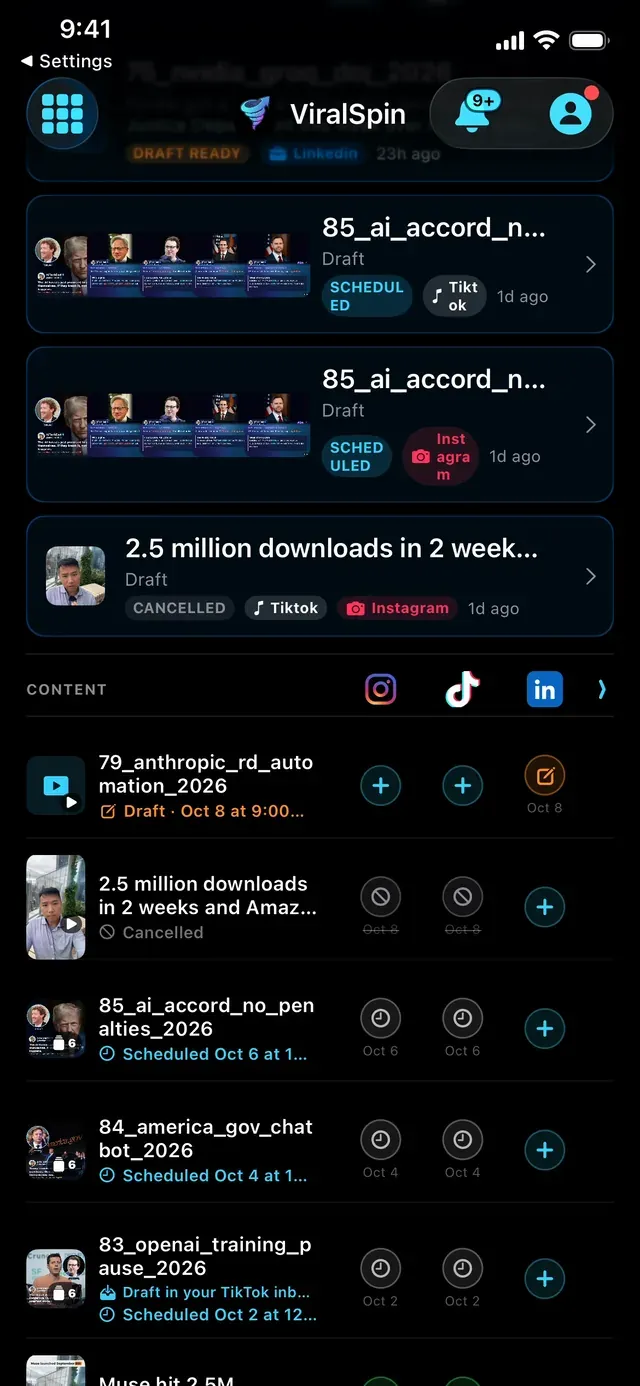
Tap Publish, pick your accounts and choose Schedule for later. One reel can go to TikTok, Instagram, YouTube and LinkedIn, and the Publish tab shows what's going out where on a per-platform calendar.
Make it yours, not a copy
Replicating a post means taking the idea and the shape that worked and saying it your way. It doesn't mean re-uploading someone else's video. Share-in is built for the first:
- The words are rewritten in your voice, from your angles, with fresh context. You're not reading out their script.
- You film it. It's your face, your take and your edit. The original's video and audio stay theirs.
- Credit the creator when you use their ideas. If their take is the heart of your post, say so in the caption ("h/t @creator, who explained this first") or tag them. It costs you nothing, and creators notice and share it.
- Add something they didn't. Bring in recent context, your own experience, or the counter-argument. Your version should be worth watching even for someone who saw the original.
FAQ
Which apps can I share from? TikTok, Instagram, YouTube, Facebook and LinkedIn, plus articles from Safari. If an app has a Share button and the post has a link, it usually works.
Do I have to film right away? No. Shared posts wait in Saved on the Repurpose screen until you're ready.
What if I already have the link? Paste it instead. Paste a URL to repurpose anything covers the Repurpose screen, including articles, screenshots and LinkedIn posts.