ViralSpin Academy
Related Reading
News moves faster than you can film. Paste the article the morning it breaks and choose Story video. You get a finished film from the article's own photos and lines, with no camera, while everyone else is still writing their script.
Paste a URL
to repurpose anything
 AITechDad
•
Updated November 2026
A link is the most common thing you have and the least used.
Paste it into ViralSpin and it becomes your version.
That means a script in your voice, a 7-second reel, a carousel or a story video.
Here's every part of the Repurpose screen and what it does.
Share-in is the fastest way in when you're looking at the post. When you already have the link, because someone texted it to you, it's in your notes, or it's an article on your laptop, paste it instead. Both lead to the same place.
The Repurpose screen
Open Explore ideas and tap the Repurpose tab. From top to bottom:
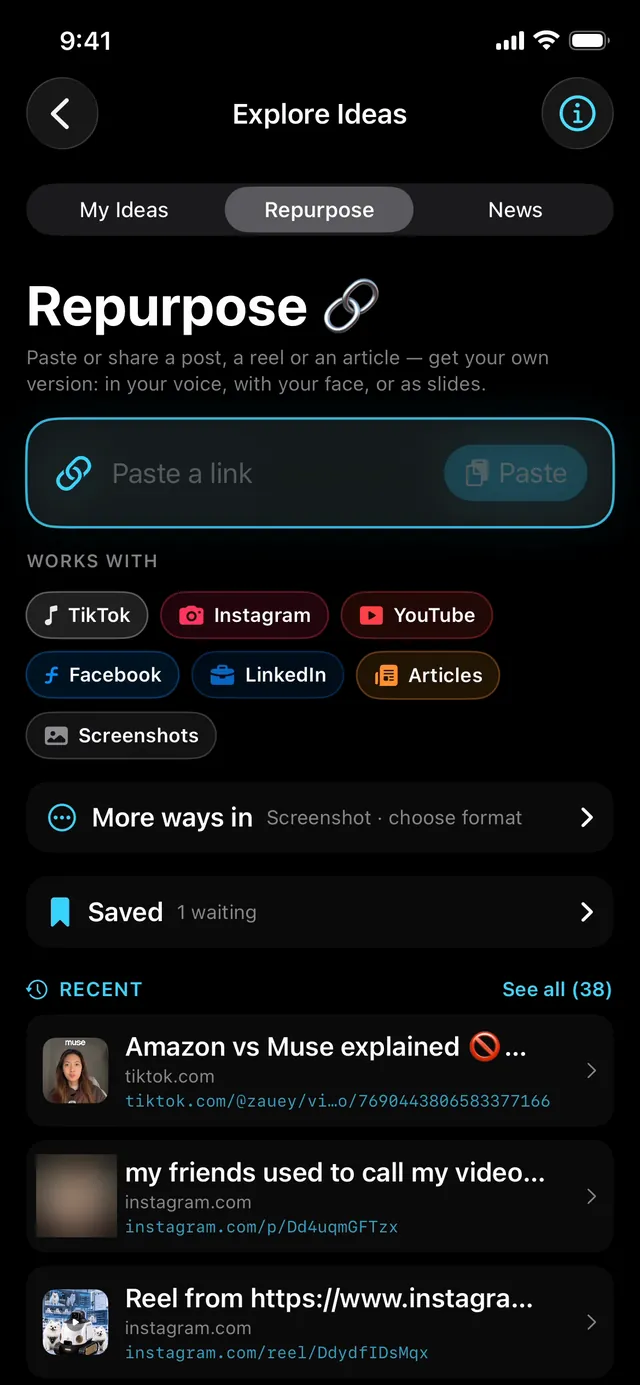
- The paste bar. Tap Paste and the link from your clipboard goes in. You can also type or paste it yourself.
- WORKS WITH. TikTok, Instagram, YouTube, Facebook, LinkedIn, Articles and Screenshots. Reels, videos, slideshows, posts and web pages all work.
- More ways in. Folded away until you need it. Inside, you can scan a screenshot (the text is read on your phone and turned into a script) and choose the format before you import. Auto works out what the link is: a carousel opens as slides, a video as a script.
- Saved. Posts you shared in with Share ▸ ViralSpin and haven't used yet. "1 waiting" means one idea is ready for you.
- RECENT. Your last five links, newest first. See all opens the full history.
Paste a link and BECOMES opens
Once a link is in the bar, the Paste button turns into a cyan arrow and BECOMES opens under the chips. It shows what this link can turn into: Talking head, 7s caption reel, Carousel, Split carousel, Story video and Voice-over. Tap the arrow to import.
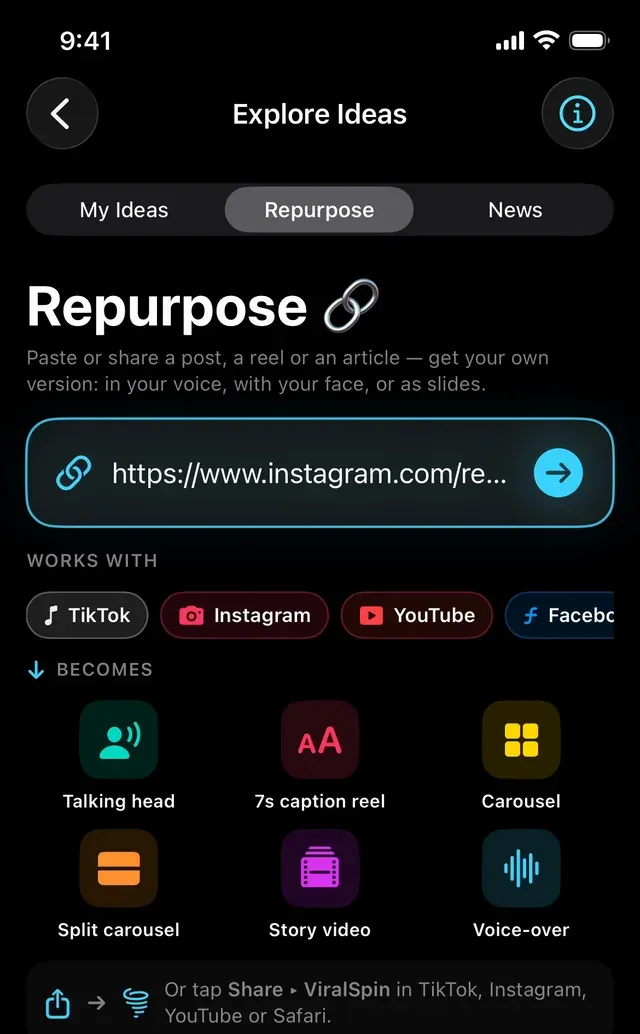
A video post goes through the same import as Share-in. ViralSpin gets the video, transcribes it, and writes the script in your voice, with your POV, a length, and optional recent context from the web. The Share-in guide walks through those screens, the teleprompter and scheduling.
Recent links: "Make it into…"
Every link you've pasted or shared stays in RECENT. Tap a row and a Make it into… menu opens with the formats that link can still become:
| On a… | Make it into… |
|---|---|
| Video post (TikTok, Reels, Shorts, Facebook) | Talking head (your script) · 7s caption reel · Carousel (from its slides) |
| Article | Talking head (your script) · 7s caption reel · Story video (photos and lines) |
| Carousel | Carousel (open its slides) |
The same menu has Copy link and Open in browser. One link can become a talking head on Monday, a carousel on Wednesday and a 7-second reel on Friday, without pasting it again.
There's no screenshot of this menu here yet. It only opens on a real tap, and our screen recordings were made without taps. The items above are the ones the app shows.
Articles: a talking head or a story video
Paste a news story or a blog post and it opens as Original article: the headline, the photo and the source, with the article text below. From there you have two ways to go:
- Film yourself. ViralSpin writes a talking-head script from the article in your voice. Film it on the teleprompter, just like a reel.
- Make it a story video. No camera. ViralSpin plans the story beat by beat from the article's own photos and lines, sets a mood and a score, and renders a short film. You can turn on closing with the publisher's logo.
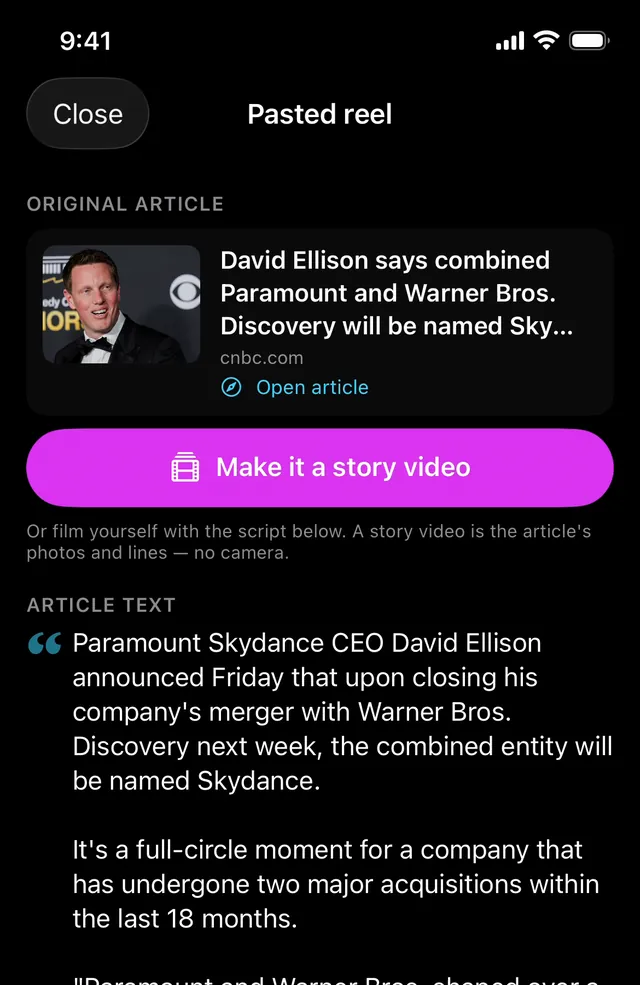
This is where Repurpose earns its keep on news. The story breaks, you paste the link, and you can have a story video ready while you decide whether to also film your take.
LinkedIn posts land as an image post
A LinkedIn post works a bit differently. It's usually a picture with a long caption, so ViralSpin opens it as an image-post draft: the post's image (or a title card if it has none, or one of your photos), and a caption you can edit.
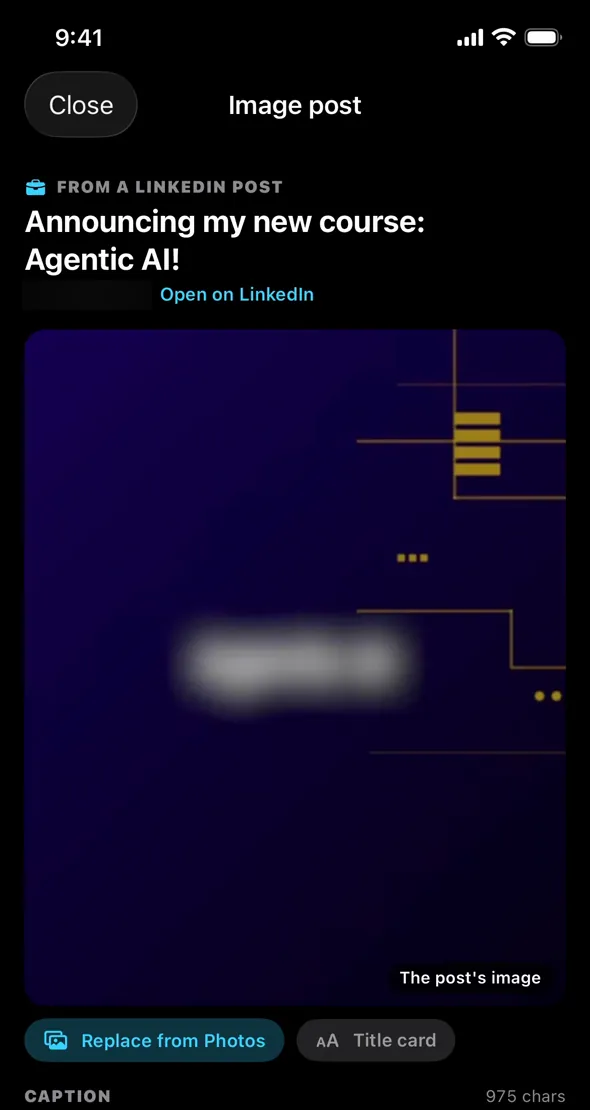
Below it, pick where it goes. LinkedIn, Instagram, TikTok (as a photo post) and YouTube (as a 10-second slide reel of the post) are all on one list, with Schedule for later if it shouldn't go out now. Or take it somewhere else entirely:
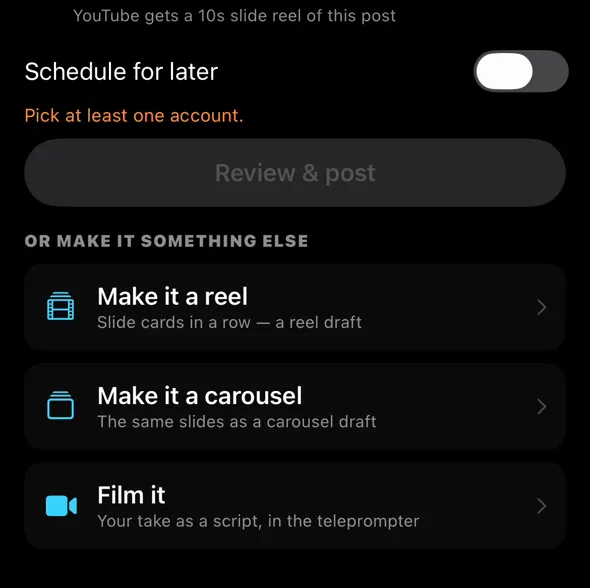
When LinkedIn doesn't share a post's text, ViralSpin asks you to paste it in, then carries on.
Same rule as Share-in: make it yours
Repurposing your own posts is the easy case: re-cut them as often as you like. When the link is someone else's, ViralSpin rewrites the words in your voice, and the take, the edit and the angle are yours. If their idea is the core of your post, credit them in the caption. Don't re-upload their video or their image as if it were yours. On an image post, Replace from Photos or Title card swaps their picture for your own.
FAQ
Where is the Repurpose screen? Home ▸ Repurpose a link 🔗, or Explore ideas ▸ Repurpose.
Can I import a screenshot instead of a link? Yes. Open More ways in and tap Or scan a screenshot. The text is read on your phone and turned into a script.
What if the link is a carousel or a slideshow reel? Auto opens it as slides. To force a format, choose it under More ways in before you import.